Create Video Ads
Generate a brand video from the brand home or Video Playground, review it in the editor, and deploy.
Video ads are multi-scene spots built from the brand website, guidelines, and optional ingredients. As soon as you start a generation, the brand video page opens — the editor loads while the job runs so you can review gates, then tweak, render, and deploy.
Prefer the brand path when daily work already has a brand ready. Prefer the team Video Ad playground when you are still attaching a business.
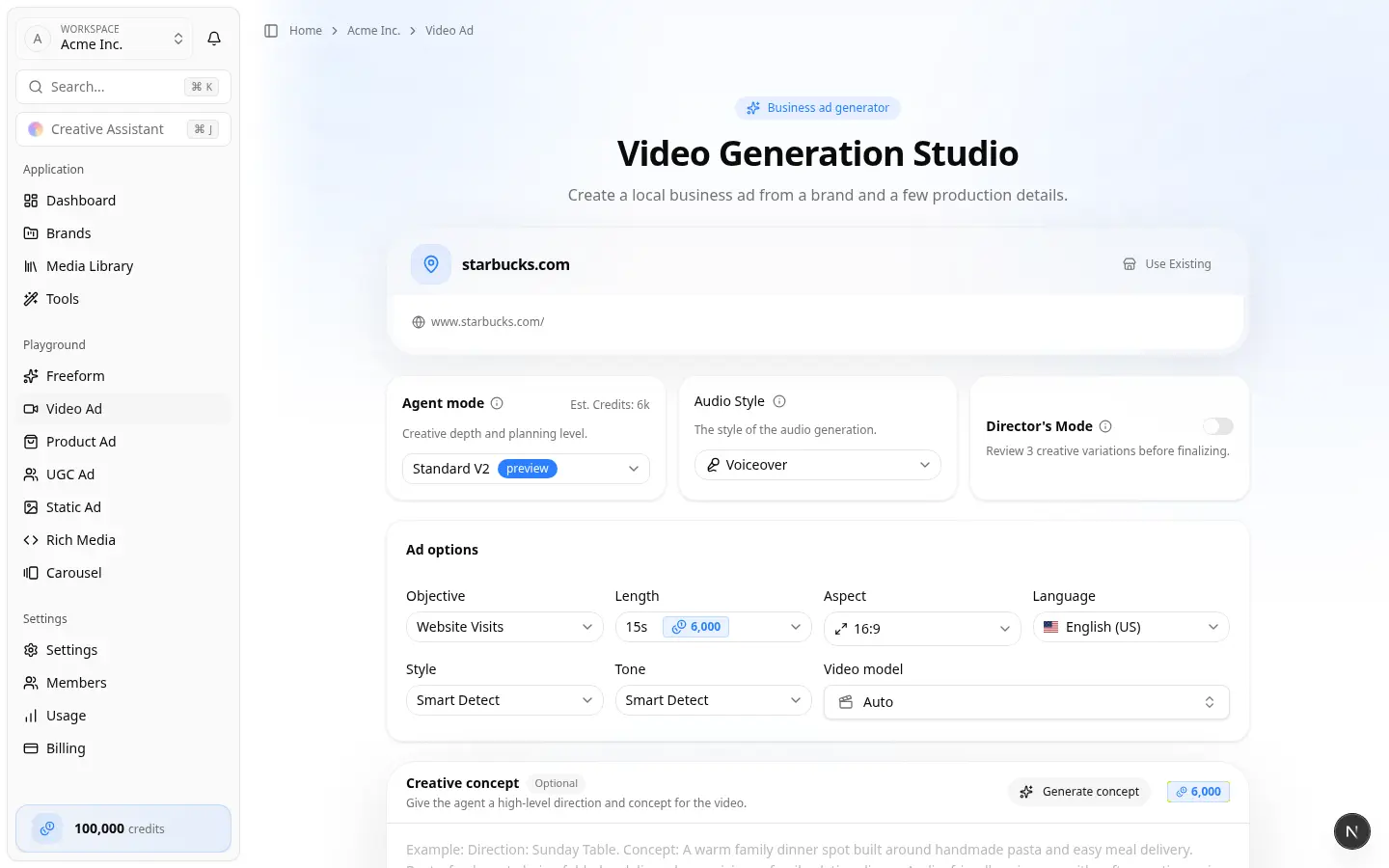
Before you start
- Correct team and enough credits
- A public brand Website, plus reviewed Brand Guidelines when possible
- Optional: product or lifestyle images — Add references in the video studio
- Publishing accounts only if you will deploy from the editor — Connect publishing accounts
Path A — Brand home (recommended when the brand exists)
- Open the brand. Confirm the name in the header.
- Under Or start from a format, choose Video. Or open Video Ads in the sidebar and choose Generate Video.
- The page asks What kind of video? (Every video uses this brand's guidelines, media and personas.):
- Standard — a scripted ad built from the brand's website and assets. This is the path the rest of this page describes.
- UGC — creator-style videos featuring AI personas. See UGC and personas.
- Hypermotion, Catalyst, and Metaphor — product videos. See Create product ads.
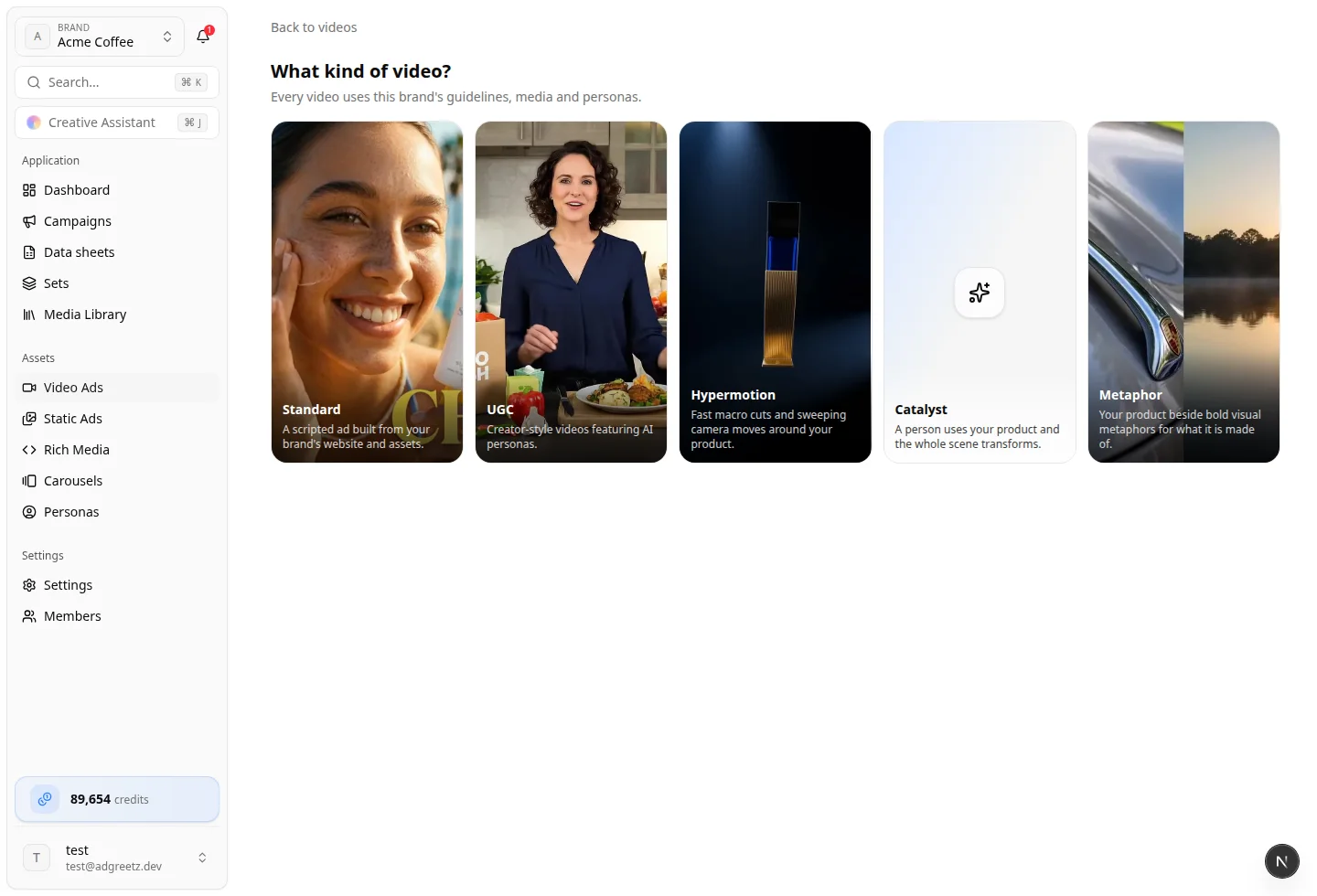
Freeform brands skip the chooser and open the Freeform playground instead. 4. Standard video ad opens the brand's Video Generation Studio at /home/brands/{brandId}/video-ai/create/template — the same studio as the playground, with the brand already filled in. Optionally add an Ad name, then fill Creative direction and Output settings. Uploaded references are saved to this brand's Media Library. 5. Choose Generate ad. The brand video page opens and generation begins.
The brand is locked in these studios: there is no business search, Brand options, or new-brand mode. If you leave the studio before generating, your text and settings are still there when you come back in the same browser tab. Files you attached must be added again.
Path B — Team Video Playground
- On the team home, under What will you create today?, choose Video Ad.
- On Video Playground (Let our agents produce videos for you), the field is Which business is this ad for? Placeholder: Search your brands, find a business, or paste a website.
- Your brands lists brands already on the team. A website that matches one offers Use your saved brand "{name}" with Already saved. Otherwise pick a Google place, or Add "{name}" as a new business (Starts from the website you entered). The hint under the field: Choose a saved brand to reuse its details, or find a new business to get started.
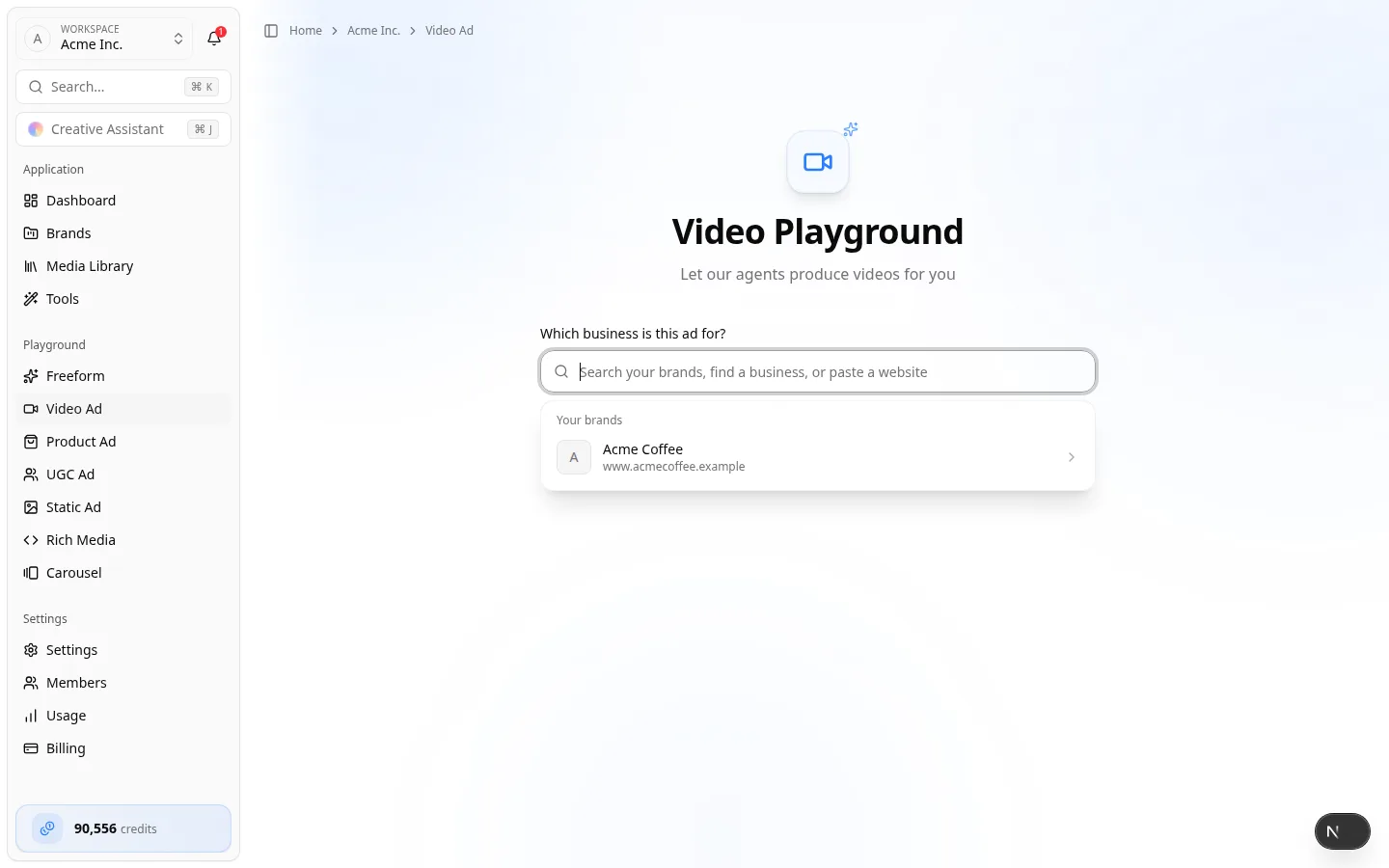
- After you select a business, the Video Generation Studio opens (badge Business ad generator). There are no separate Configuration / Content tabs — one studio page holds everything.
- Confirm the business name. Open Brand options to choose an existing brand or create a new one. Choose Start over to pick a different business.
- If the place has no website, enter Business website with
https://. - Under Creative direction, set Objective, Tone, and Audio style, then shape the idea in Creative concept.
- Under Output settings, set Aspect ratio, Length, Language, Agent mode, Video model, and optional Director's mode. Expand Advanced controls for the planning AI model and Use existing brand media.
- Optionally type a brief in Creative concept, or choose Generate concept. Attach images, audio, MP4, or a video URL if needed. For each uploaded video, choose whether to cut it into the ad or use it as a style reference. Media Library browse is available when an existing brand is selected.
- Choose Generate ad.
Playground objectives also include Phone Calls. Ad name is optional — leave it blank and the ad is named from its script. There is no Visual Style dropdown; pin a visual style in the creative concept (e.g. "make it animated").
A successful run redirects to /home/brands/{brandId}/video-ai/{videoId} — the same editor as the brand path.
Studio layout
| Area | What you set |
|---|---|
| Business and brand | Name, website (when missing), and where to save the video |
| Creative direction | Objective, tone, audio style, then the creative concept and references |
| Output settings | Aspect ratio, length, language, agent mode, video model, Director's mode |
| Footer | Bar under the card: a summary such as 15s · 16:9 · Voiceover · Standard V2 · ~6,000 credits and Generate ad. Length choices include 6s, 8s, 10s, 15s, and 30s |
While it generates
You can leave the tab. The job continues on the server. Watch Recent activity on the brand home or the Video Ads library. Typical jobs take a few minutes.
If Director's Mode is on, you may see review steps such as:
- Review Brand Data — confirm logo, description, scraped images, and YOUR INGREDIENTS, then Confirm & Continue
- Choose your voiceover — pick a variation, then Select this voiceover
- Choose Your Jingle (when audio is jingle) — Select this jingle
Review in the editor
The sidebar includes creative and production tabs such as AI, media, script/voiceover, music/jingle, subtitles, end card, scenes, and Deploy.
On Deploy:
- Share a review link
- Render final video, then Download video
- Upload to connected platforms (for example Upload to YouTube, Facebook, TikTok) or follow VAST / CTV instructions
Connect platforms on the brand first if those buttons are empty — Connect publishing accounts.
Where finished videos appear
- Brand Video Ads (
/home/brands/…/video-ai) - Brand home Recent activity → Videos
- Team home Recent creations → Videos filter
Video ads vs Tools Video Generator
| Need | Use |
|---|---|
| Brand ad with timeline, end card, deploy | This guide (Video Ads / Video Playground) |
| Single raw clip from a prompt or frames | Video Generator (team Media Library only) |
If something blocks you
- Website required — add it on Settings → General, extract guidelines, retry
- Wrong business — confirm the brand selector; playgrounds can create a brand via Brand options → Create a new brand
- Off-brand result — fix guidelines or ingredients, then regenerate
- Stuck in progress — wait, refresh Recent activity; see Help