Connect Publishing Accounts
Link YouTube, Meta, Instagram, and TikTok to the current brand so you can deploy from the editor.
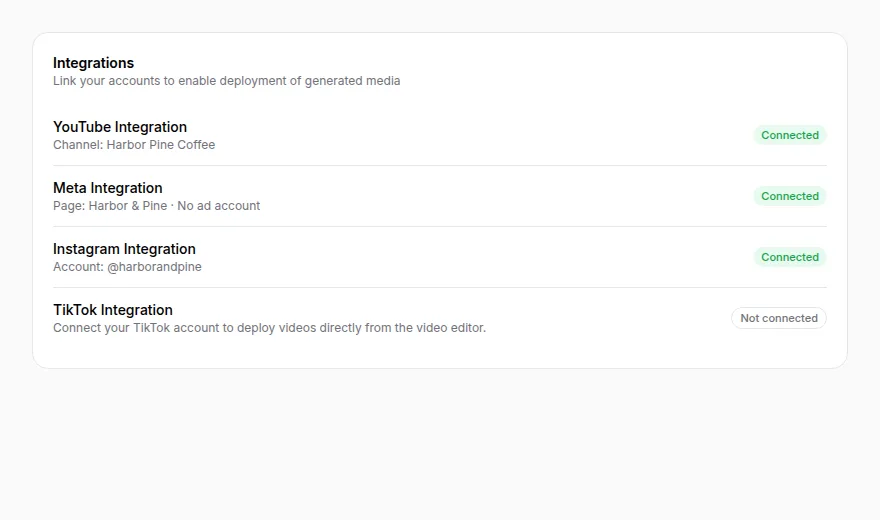
Publishing connections live on Settings → General, in the Integrations card. They belong to this brand only. Connecting YouTube on Brand A does not connect it on Brand B.
Rows appear only when that deployment option is available on your team. If a platform is missing, it is not a broken page.
You need brand publishing permission (typically a brand owner or admin, or a team owner).
Do not screenshot or copy the provider's consent screen. Permissions and layouts change on their side.
1. Open Integrations
- Open the brand you will publish from.
- Select Settings → General.
- Scroll to Integrations.
2. Connect YouTube
Use this to upload videos from the video editor.
- Choose Connect YouTube.
- Authorize channel access and uploads in Google.
- Return to Brand Settings.
- The row should show Connected and the channel name as a link.
Disconnect YouTube removes the connection from this brand.
3. Connect Meta (Facebook)
Use this to publish Page posts or run paid placements from the video editor.
- Choose Connect Facebook.
- Authorize in Meta.
- After authorization, the configure step opens: Authorized → Configure.
- Select a Facebook Page (required).
- Optionally select an Ad account. Skip it to publish organic Page posts only.
- Choose Connect (the button includes the Page name).
If no Pages are found, confirm you manage a Facebook Page, that the authorization included Pages, then return to Settings and connect again.
When connected, the row shows the Page, the ad-account name or No ad account, and Connected or Needs attention.
You can Change Page or Add Ad Account / Change Ad Account without repeating the full OAuth flow while the authorization is still valid. Disconnect Meta also deactivates the Instagram connection that was derived from this Page.
4. Link Instagram
Instagram does not have its own sign-in button. It is derived from Meta.
- Before Meta is connected, the row says Connect Meta first.
- During Meta configuration, a professional Instagram account attached to the selected Page is linked automatically when available.
- After Meta is connected, you may see Link Instagram if it was not attached yet.
Requirements:
- A professional Instagram account on the connected Facebook Page
- Instagram access included in the Meta authorization
- Older Meta connections may need to be reconnected
A connected row shows @username. Use Instagram to import post images and publish static ads. Importing ad-account images also needs a selected Meta ad account.
Disconnect Instagram removes only Instagram. Disconnecting Meta removes both.
5. Connect TikTok
Use this to deploy videos from the video editor.
- Choose Connect TikTok.
- Authorize the TikTok account.
- Return to Brand Settings.
- Confirm the connected account name.
Disconnect TikTok removes the connection from this brand.
When a connection needs attention
A Needs attention chip means the saved authorization is expired or the selected Page/account is no longer valid. Disconnect and connect again, or use Change Page / Change Ad Account for Meta.
If deploy from the editor still fails after a green Connected chip, see Help.