Data Sheets
Upload a product feed, inventory, or location list, check its columns and key, and replace it with a new version.
A data sheet is a spreadsheet stored in a brand: one row per product, vehicle, store, or offer. Use it to make one personalized ad per row, to give a campaign a feed, or to let an assistant answer questions about your inventory.
Before you upload
- Use a CSV, TSV, or Excel XLSX file. An old
.xlsfile must be re-saved as.xlsxfirst. - Put column headers in the first row.
- In an XLSX file, the first worksheet that has any content is read.
- Values are kept exactly as written. ZIP codes, VINs, and SKUs with leading zeros stay intact.
- Image links must be public https links — see Image cells must use https.
| Limit | Maximum |
|---|---|
| File size | 20 MB |
| Rows | 50,000 |
| Columns | 200 |
A file over a limit fails with a clear message. Nothing is cut off silently.
1. Upload a sheet
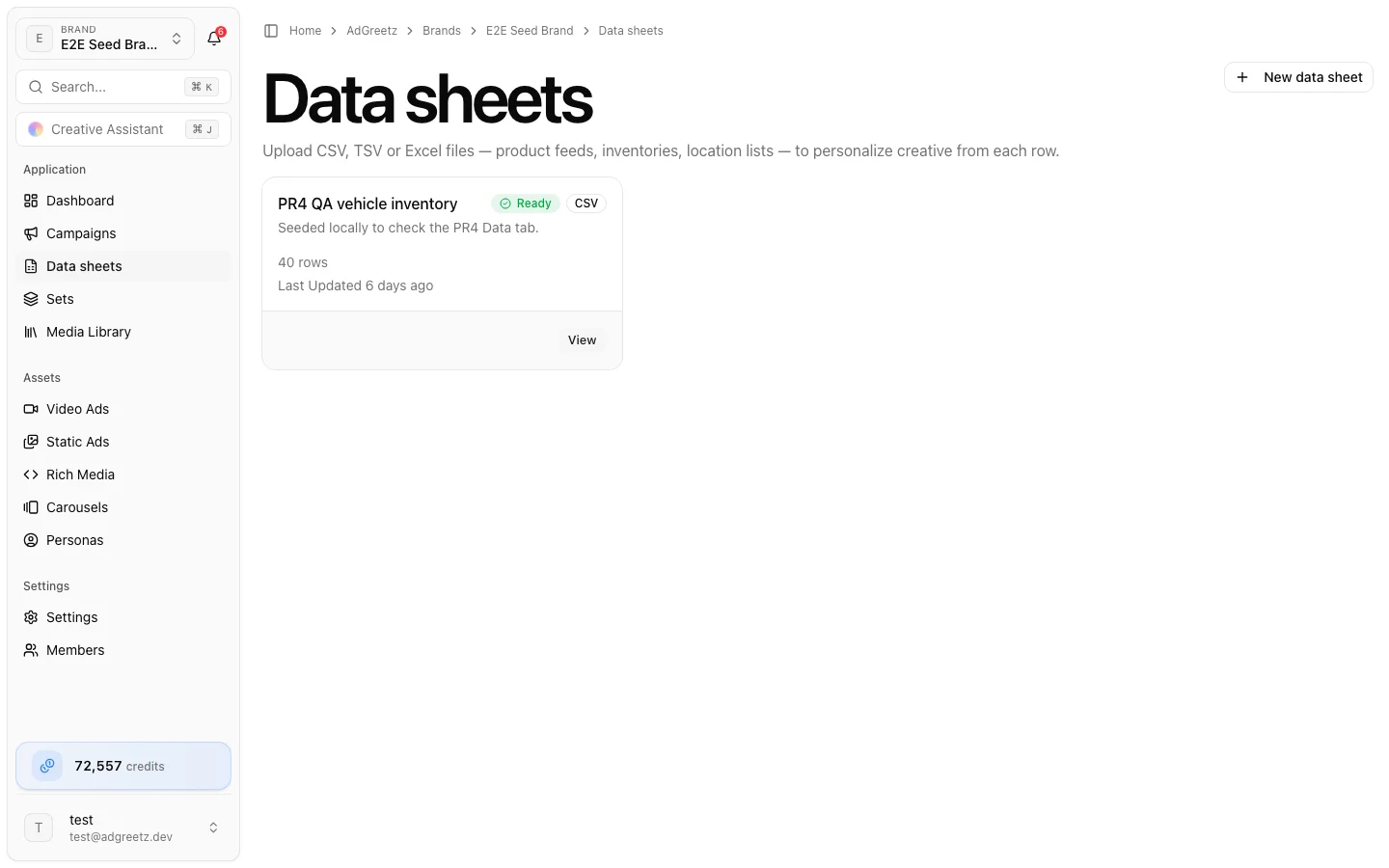
- Open the brand and choose Data sheets in the sidebar (or the Data sheets link on the launchpad).
- Choose New data sheet. The dialog repeats the limits: up to 20 MB, 50,000 rows and 200 columns.
- Enter a Name and an optional Description.
- Under Upload File, choose your file.
- Choose Upload.
You see Upload received — processing your file. The sheet's card shows Processing, then Ready or Failed. The page updates by itself.
If processing fails, the card says why:
| Message | What to do |
|---|---|
| The file is larger than 20 MB. | Split the file or remove unused columns |
| The file has more than 50,000 rows. / more than 200 columns. | Split the file |
| Unsupported file. Upload a CSV, TSV or XLSX file… | Re-save the file in a supported format |
| The file couldn't be read… | Open the file in a spreadsheet app, re-export it, and upload again |
| The file is empty. | Check that you exported the right sheet |
2. Check columns and types
Choose View on a sheet. The left column shows Details (columns, rows, file type, version, dates), the Key column, Reupload Data, and Used by. The grid shows the current version's rows.
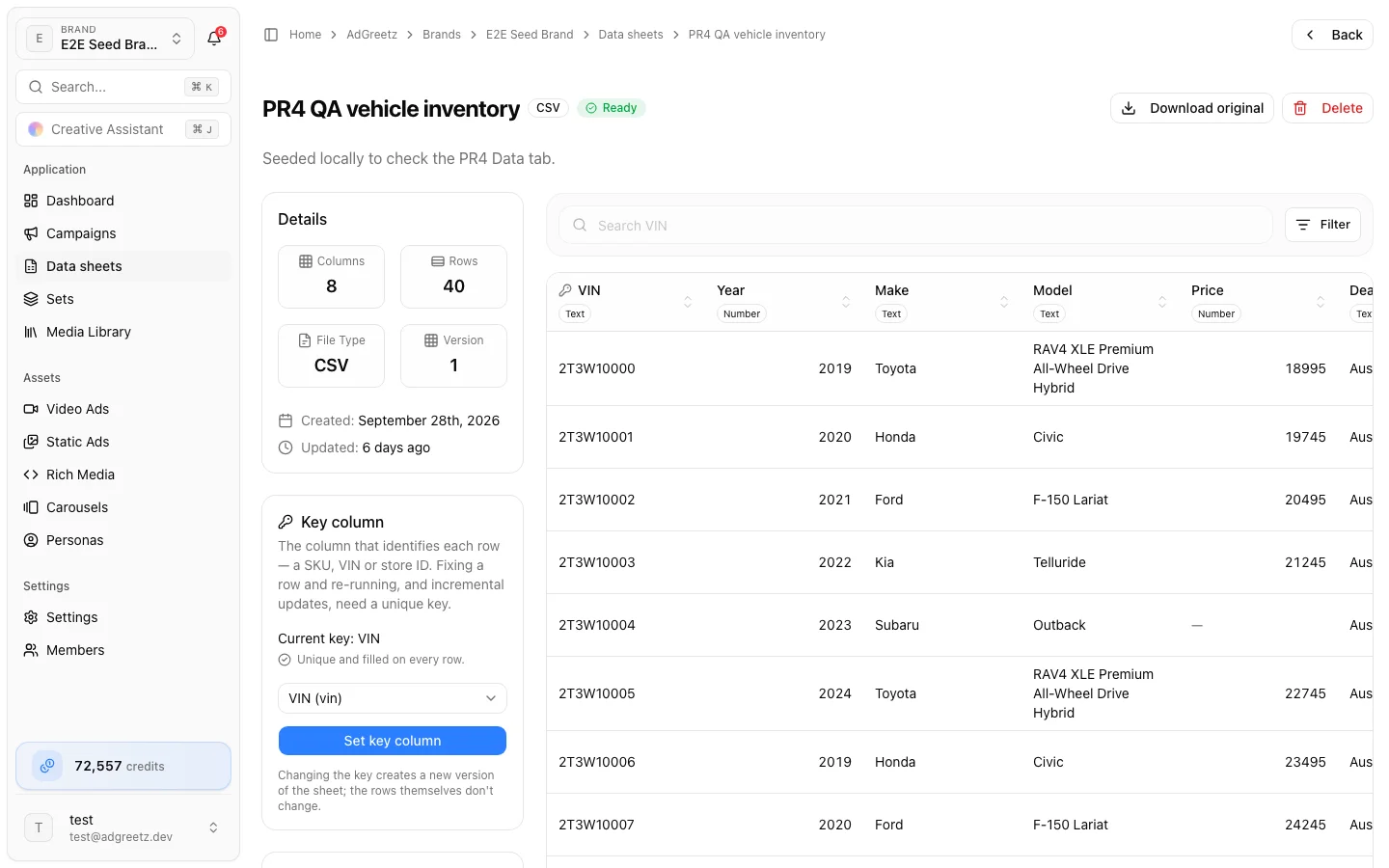
Each column header shows a type badge. Types are detected from the values when the file is processed:
| Type | Detected when |
|---|---|
| URL | Every value is a web link |
| Image URL | Every value is a web link, and the column is named like an image (image, photo, logo, thumbnail…) or most links end in an image extension |
| Number | Every value is a number — unless the column looks like an identifier (ID, SKU, VIN, ZIP, phone, code…) or values have leading zeros. Those stay Text |
| Date | Values read as dates. A calendar icon warns when day and month are ambiguous (such as 03/04) and says how they were read |
| Text | Everything else |
You cannot change a type by hand. To change one, fix the values in your file and reupload.
Each header also gets a column key: the header in lowercase with underscores, such as model_year for Model Year. Hover a type badge to see it. You use keys when you build text from several columns, for example {year} {make} {model}.
3. Search, filter, and sort rows
- Search looks in the key column only. Without a key column the box says Pick a key column to search rows.
- Filter takes a Column, a Condition (is, is not, contains, is greater than, is less than, is one of; dates use is after and is before), and a Value. Choose Apply filter, or Clear filter to remove it.
- Select a column header to sort. Number and date columns sort by value, not alphabetically.
- Image URL cells show a thumbnail (JPEG, PNG, GIF, or WebP). Select it to open the original. URL cells open in a new tab.
On very large sheets, a number or date filter or sort can be ignored with a notice. Filter on a text column instead, or try again in a minute.
4. Pick the key column
The key column identifies each row — a SKU, VIN, or store ID. It labels rows in creative sets and export file names, lets you search rows, and lets AdGreetz match rows when you fix a value and re-run a set.
- In the Key column card, choose a column.
- Choose Set key column.
Changing the key creates a new version of the sheet; the rows themselves do not change. You cannot change it while a newer upload is still processing.
The key column needs a unique value on every row. If some rows share a value or have none, the key icon turns red and the card says Some rows share a key value (or have none), so keyed updates are off for this version. Pick a different column, or fix the file and reupload.
5. Replace the sheet with a new version
Every upload and every key change creates a new, read-only version. A version is never edited in place.
- In Reupload Data, choose Select File and pick the new file. The same limits apply; they are listed under the file picker.
- Choose Reupload.
- While it processes, the card shows Processing the latest upload… and the current version stays in use.
- When it is ready, it becomes current: Version 3 is current.
If the new upload fails, the card says The latest upload failed with the reason, and the previous data is still in use.
A creative set copies the rows it uses when it is prepared. Replacing the sheet later never changes a set you already made. The current and previous versions are always kept; rows of older versions are cleaned up automatically after about a day.
6. Download or delete a sheet
- Download original downloads the file behind the current version. Some sheets created before versions existed have no original file: the button is then greyed out, with the reason under it. Reupload the sheet to keep an original.
- Delete is shown to brand owners and admins, and to owners of the team. Confirm with Delete data sheet. Campaigns that used the sheet keep the link and show it as Deleted.
There is no rename action. To use a different name, upload the file again as a new sheet.
7. See what uses a sheet
Used by lists what references the sheet, newest first (up to 50):
- Campaigns that attached it
- Creative sets made from it, when your team has creative sets
- Display tags (legacy) that still reference it
Image cells must use https
Image cells are downloaded by AdGreetz — for grid thumbnails, for previews in the editor, and when a set is prepared. For security, only public https links are downloaded. Anything else is refused:
- An
http://link can still be typed Image URL, but its thumbnail falls back to a plain link. - When you review a set, rows whose image is refused are skipped with The image URL for "…" isn't allowed. Use a public https link.
The image itself must be a JPEG, PNG, WebP, or GIF of 20 MB or less, and reachable without a login. Fix the links in your file — usually by changing http:// to https:// — and reupload.
Let an assistant read a sheet
The Creative Assistant, when you are working in a brand, can list that brand's data sheets and read their rows — with filters, chosen columns, and sorting, up to 100 rows at a time. Ask it things like "Which SUVs under $30,000 are in the inventory sheet?"
The campaign AI interview can list the brand's sheets and see which one is attached to the campaign.
Sheet contents are treated as data, never as instructions. If a cell contains text that looks like a command, the assistant does not follow it. After reading a sheet, the AI interview asks you to confirm before it changes anything.
With creative sets, assistants can also draft a personalized set for you — see Sets in campaigns and assistants.