Brand Guidelines and Website Data
Extract what was learned from the website, then edit the guidelines that actually steer generation.
Two settings tabs look related and are easy to mix up:
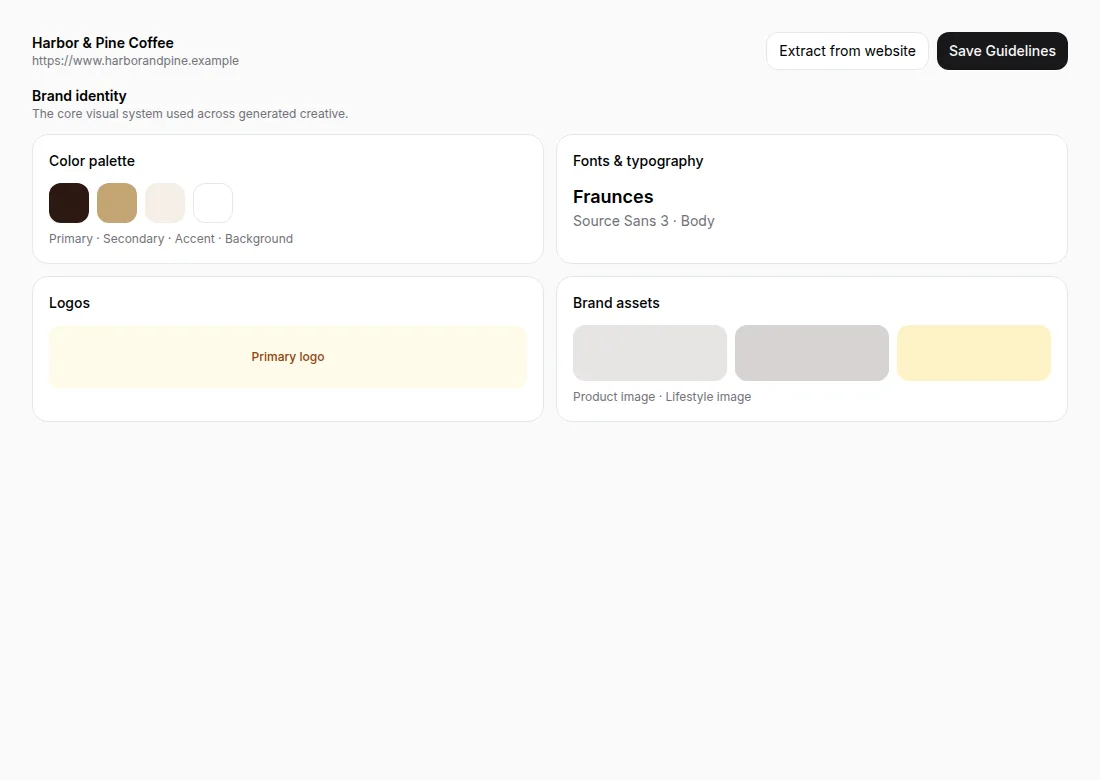
- Brand Guidelines — the editable instructions generators follow
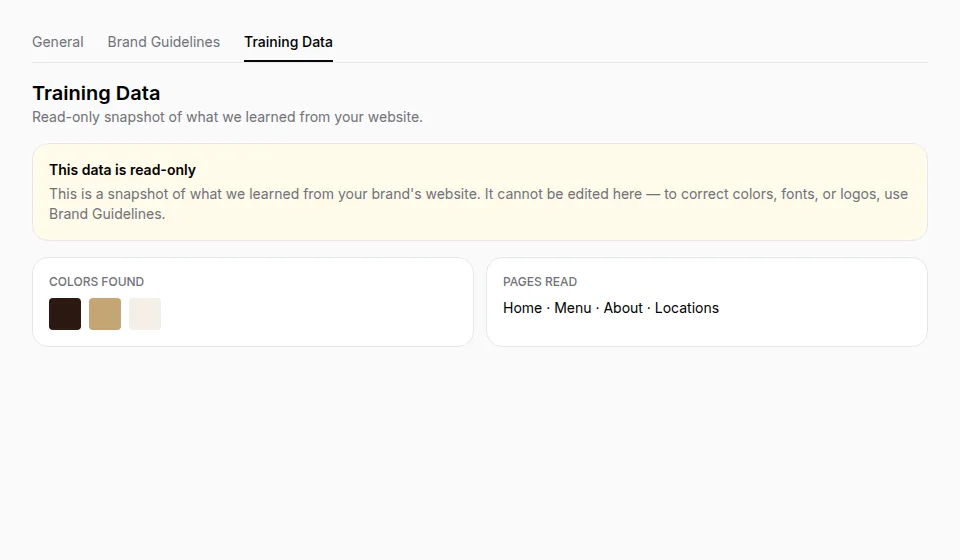
- Training Data — a read-only snapshot of what was learned from the website. You can exclude images and highlights from creative; you cannot edit the snapshot itself.
Correct creative direction in Brand Guidelines.
Before you start
- The brand has a public website on Settings → General
- Leaving with unsaved guideline edits shows a confirmation: stay and keep editing, or leave and discard them
1. Open Brand Guidelines
- Open the brand.
- Select Settings → Brand Guidelines.
The sticky header shows the brand name, website, Extract from website, and Save Guidelines.
2. Extract from the website
Use this when you first set up the brand, or after the website changes.
- Choose Extract from website.
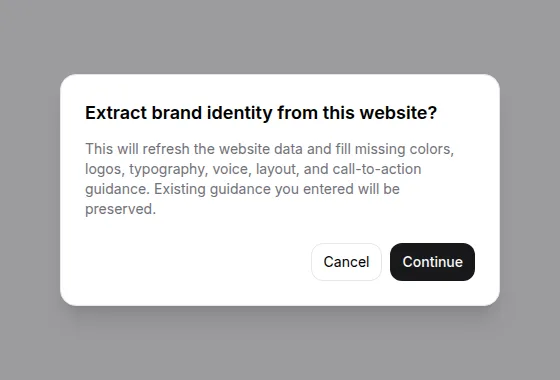
- Read the confirmation: Extract brand identity from this website?
- The dialog explains that website data is refreshed and existing guidance you entered is preserved.
- Choose Continue.
- A toast confirms extraction started.
What extraction actually fills today:
- Missing colors, logos, and fonts
- A missing brand picture, when one is found
- A refreshed Training Data snapshot
It does not currently write Voice & tone, layout, or CTA guidance — even though the confirmation mentions some of those. Review those sections yourself.
The form does not always live-refresh when processing finishes. Reload Brand Guidelines if sections still look empty after a few minutes.
3. Review brand identity
Work top to bottom. Missing colors, fonts, logos, and assets show a Not set badge.
Color palette
Add colors with a hex value, name, Usage Rule, and a role: Primary, Secondary, Accent, Background, Text, CTA, or Other.
Logos
Upload PNG, JPG, SVG, WEBP, or AVIF. Set a name, variant (Primary, Secondary, Icon, Wordmark, Monochrome), and a usage rule.
Fonts & typography
Add a Google Font or a Custom Font (TTF, OTF, WOFF, or WOFF2, up to 10 MB). Set family, usage (Heading, Body, Accent, CTA), weight, style, and a rule. Expand typography rules for heading/body style, minimum size, text-to-image ratio, line height, and letter spacing.
Brand assets
Upload product and lifestyle images, textures, patterns, backgrounds, overlays, watermarks, or style references. These tell generators what the brand looks like. They are not a replacement for the brand Media Library, which stores production files you reuse across jobs.
Layout
Set logo placement, CTA placement, safe-zone margin, and extra layout rules.
4. Review advanced guidance
Expand Advanced guidance for:
- Voice & tone — description, keywords, do's, don'ts, and a general rule
- Call to action — default text, style, and rules
- Ad creation rules — separate Video, Rich Media, and Static Ads rules (intros, watermarks, CTA requirements, fallbacks, borders, and so on)
- Legal & Compliance — brand disclaimers and prohibited claims. These only add to account-level rules; they never remove them. Inherited account rules are read-only. Set the account floor first — Compliance settings.
5. Save
- Choose Save Guidelines.
- If fields are invalid, nothing is saved. The toast lists the sections to fix and the page opens the first one.
- Wait until uploads finish — Save stays disabled while a file is uploading.
6. Inspect Training Data
- Open Settings → Training Data, or Training data on the brand home rail.
- Read the banner: This data is read-only. The snapshot cannot be edited here. To change colors, fonts, or logos, use Brand Guidelines.
- The same banner tells you how to curate: if an image or highlight is wrong for the brand, exclude it and it stays out of creative. The website snapshot itself is never changed.
- On an image, choose Exclude. Choose Include to use it again.
- On a highlight, select the chip to exclude it. An excluded highlight is struck through; select it again to include it.
Empty copy: No scraped data found yet for this website. Run Extract from website from Brand Guidelines, and confirm the website on General is reachable.
If your team has Knowledge
Some teams see Knowledge in the brand sidebar. Managers can add a PDF (up to 50 MB) or a website. Those sources become suggestions for colors, typography, and tone of voice. Nothing is applied until you Accept a suggestion, which writes that field into Brand Guidelines.
If you do not see Knowledge, ignore this section — Brand Guidelines is the source of truth.