Personalized Rich Media Sets
Fill a rich media ad from a data sheet and export one self-contained HTML5 bundle per row, with its own clickTag.
A rich media ad can be a template too. A rich media set makes one HTML5 bundle per sheet row — a ZIP you upload to an ad server — with that row's text, images, and click-through baked in.
Availability: personalized creative sets are rolling out to teams gradually. If you do not see Personalize with data on the rich media ad's page, your team does not have it yet. Contact support to ask for access.
How rich media sets differ
| Static set | Rich media set | |
|---|---|---|
| One ad is | One row in one size (a JPEG) | One row, as a responsive HTML5 bundle covering every size |
| Sizes on the review | The sizes you pick | Responsive (every size) |
| Quote line | Renders | Bundle builds |
| Text fit check | Yes — ads can need review | No |
| Save to library / Edit a copy | Yes | No — download or export the bundle |
1. Mark what changes per row
Open the rich media ad from the brand's Rich Media list (/home/brands/{brandId}/rich-media/{generationId}). In the left panel's Assets tab, give each element that should change a variable with its { } chip — the headline, the price, the product image, the link. Save the ad.
2. Open Personalize with data
- On the same page, choose Personalize with data in the toolbar. The panel opens on the right.
- Pick a Data sheet, then map variables as for a static ad: Auto-map, Suggest with AI, sources, transforms, and Save mapping. See Personalize a static ad.
The stage previews the current row: the saved ad with that row's values, running in a sandbox that loads only the ad's own files. The ad itself is not changed. Step through rows, or open the Preview grid and pick a row.
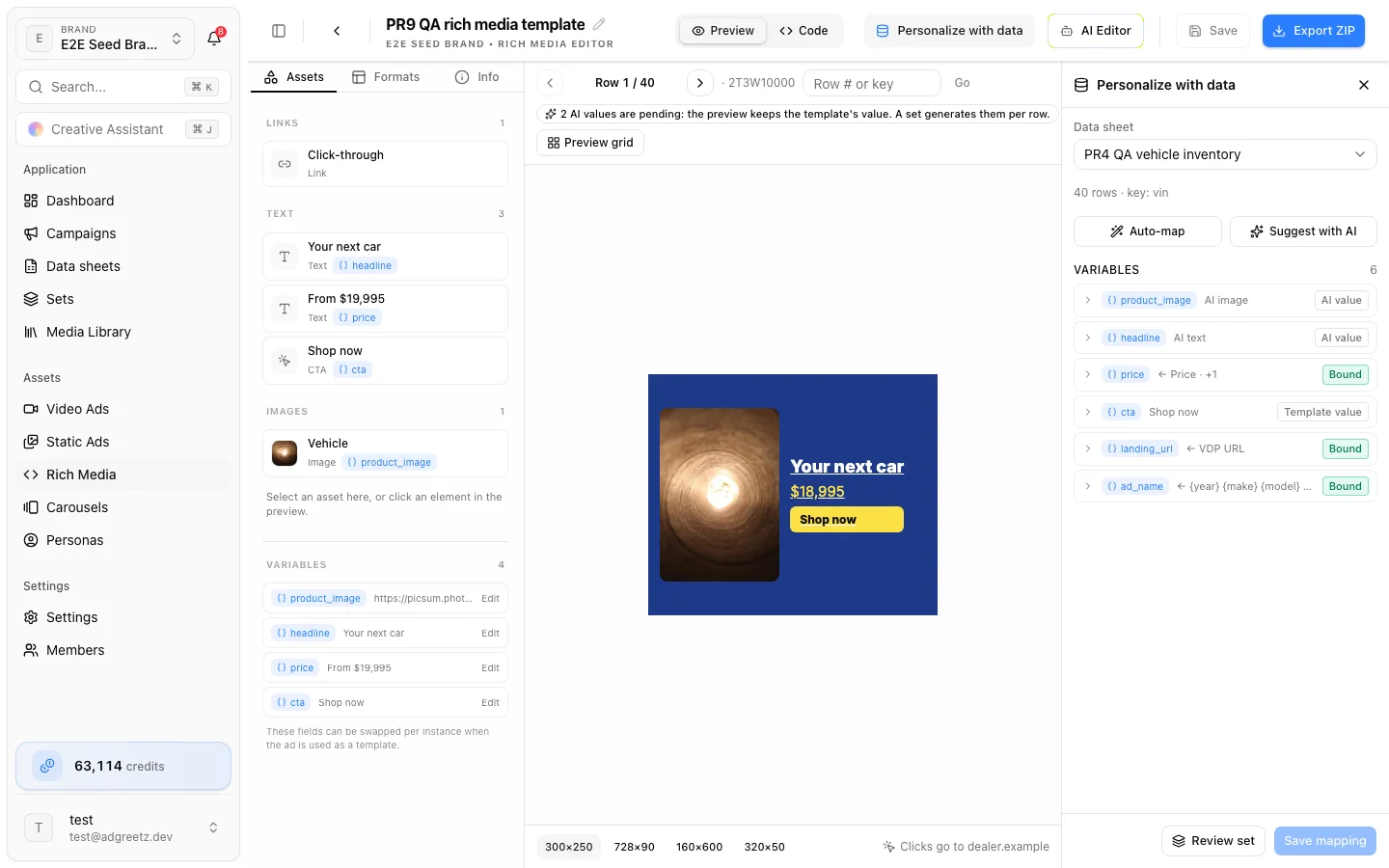
Most of the ad's own images reach the preview through the app, so an image whose link redirects to another site usually still shows, as it will in the bundle. Some keep loading from their original link instead, and may not show in the preview if that link redirects — the bundle still includes them:
- images that aren't JPEG, PNG, GIF or WebP (SVG, AVIF, HEIC and others), images over 2 MB, and images past the first 40 (or past about 8 MB in total)
http://links, and links to private or internal addresses- every image of an ad whose HTML is very large
- images loaded from inside an external stylesheet
- images you added since the last save — the preview always uses the saved ad
Videos cannot come from the sheet yet. A video variable keeps the template's clip, and the bar says so.
3. Wire the click-through
Every click-through in a bundle goes to one place: the row's landing_url.
- Bind
landing_urlto a column to give each row its own landing page. Links must start withhttps,mailto, ortel. - The bundle declares
var clickTag = "…"with that URL — the usual IAB convention — so an ad server can replace it with its own tracking URL. - Without a landing URL, the ad keeps its own exits and
clickTagis empty.
If the ad's link element is bound to a different variable, the row is blocked: every link in the bundle goes to the one click-through, so that variable would be replaced. Bind the link to landing_url instead.
4. Make sure the template can be bundled
A bundle is self-contained. When the set is prepared, every script, stylesheet, font, and image the template loads is downloaded once and packed into each bundle. A finished bundle makes no network requests except its click-through.
So some templates cannot be bundled. The review then skips them with a reason:
| The template… | What to do |
|---|---|
| Loads a frame, redirects the page, uses a relative link, or loads a script that is not from a public library CDN | Remove it from the template |
| Points to another site outside its click-through — a plain link, a form, or an attribute | Remove it, or make it the ad's link |
| Plays video or audio from another site | Remove the media |
| Loads too many files, or its files add up to too much (the message gives the limit) | Use fewer or smaller images, fonts, or scripts |
| Loads a script, stylesheet, or font that cannot be downloaded | Check the link, or remove it |
Fix the template, save it, then choose Refresh quote on the set's review.
5. Review and generate
Choose Review set in Personalize with data. The review works as for a static set — see Review and approve a set. The Ads line reads like 40 HTML5 bundles: one per row, covering every size.
6. Check each bundle
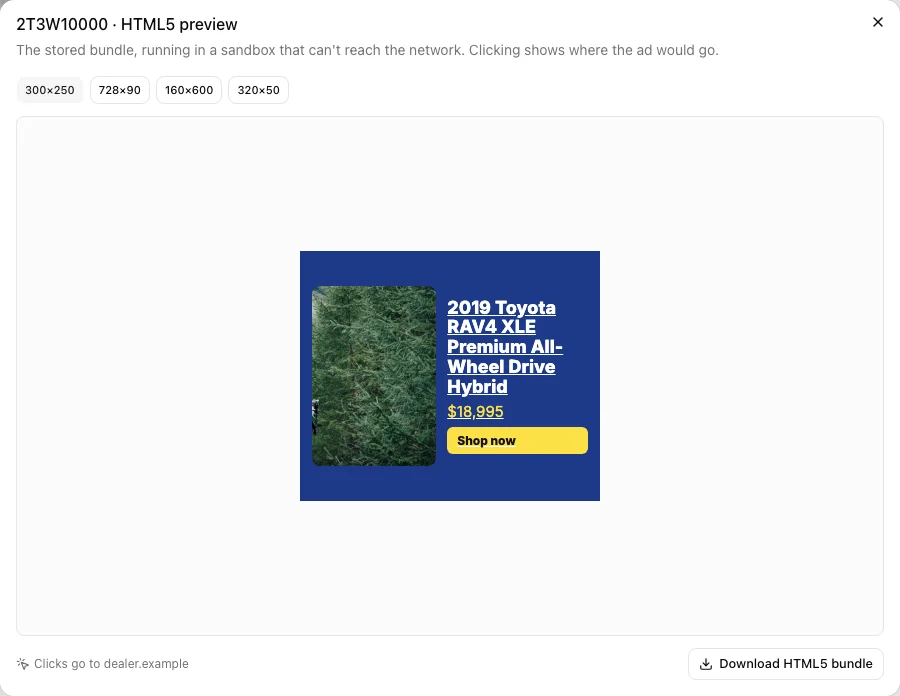
On the set page, each row shows an HTML5 bundle tile that Covers 6 sizes. From its … menu (or Preview in Table view):
- Preview opens the stored bundle in a sandbox that cannot reach the network. Switch Preview size, and click the ad to see where it would go: Clicks go to example.com.
- Download HTML5 bundle downloads that row's ZIP.
A very large bundle shows This bundle is too large to preview here. Download it instead.
7. Export
Export downloads a ZIP that holds each row's bundle as its own ZIP, ready to upload to an ad server, plus a CSV manifest of row keys, files, landing URLs, and ad names. See Export a set.