Create UGC Ads and Personas
Cast an approved likeness or a brand persona, add product shots, and generate a creator-style UGC video.
UGC ads are short, creator-style product videos. Publishers and brand teams often start here when they need on-camera talent plus a clear product story.
There are two entry points:
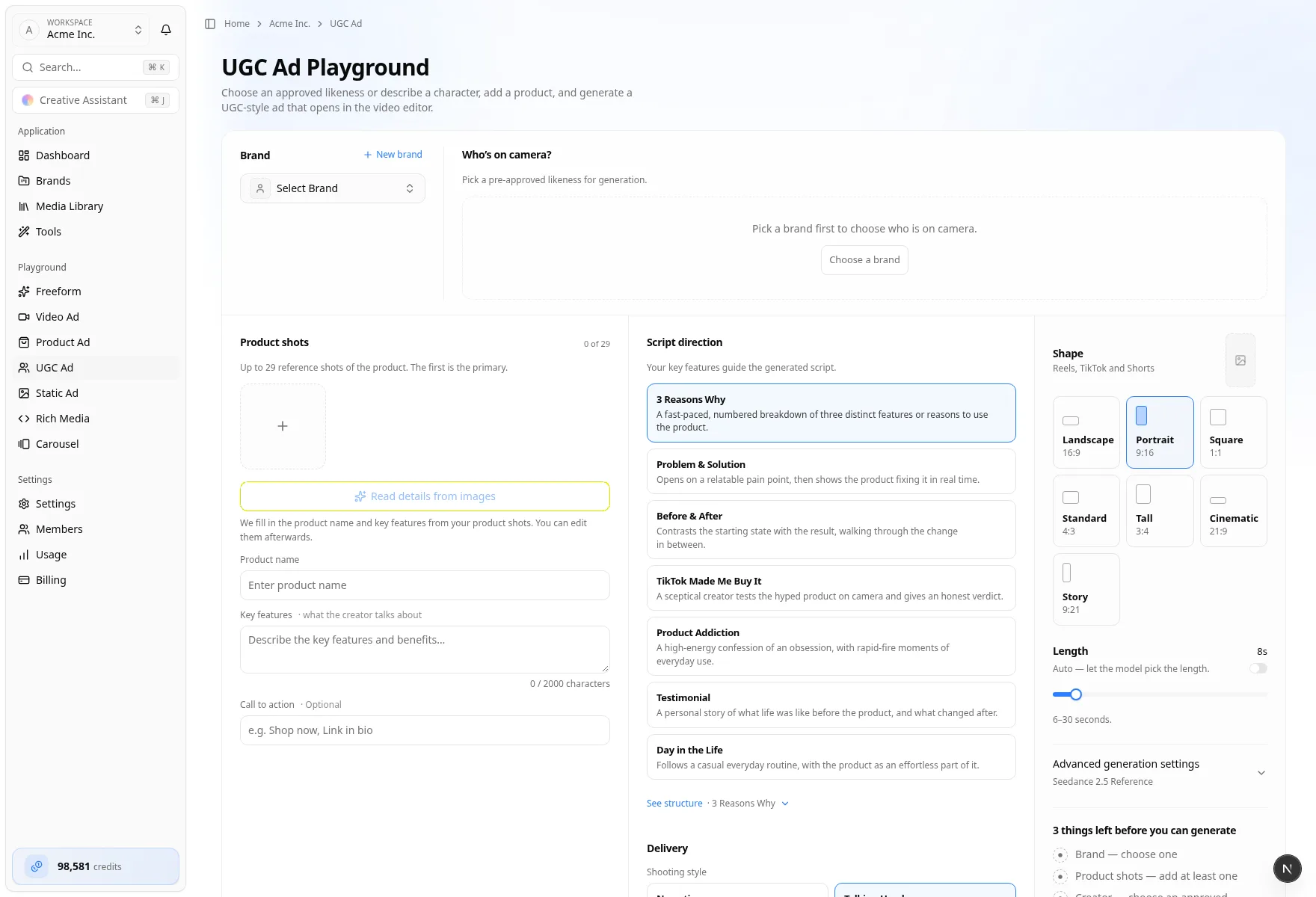
- Team UGC Ad Playground — pick a brand, cast an Approved likeness (or describe a character), attach product shots, and generate in the studio
- Brand Personas — create a brand-owned identity, then Create UGC video from that persona's image (progress stays on Personas)
Before you start
- Correct team and credits
- At least one product photo (the first shot is Primary)
- For the playground: an existing brand, or name + website to Save brand
- For Personas: you are already inside the brand that should own the talent
- Optional: team Compliance rules reviewed for claims and disclaimers
Path A — Team UGC Ad Playground (primary)
- On the team home, choose UGC Ad.
- The page title is UGC Ad Playground. A band across the top holds Brand and Who’s on camera?. Under it, Product shots sit beside Script and delivery (Script direction, then Delivery). Output settings are on the right. Recent UGC ads sits under the studio.
From a brand, you can also choose Video on the brand home, then UGC, to open the UGC studio for that brand.
Brand
- Select Brand for an existing brand, or New brand
- For a new brand: enter Brand name and Website, then Save brand
- Status line after save: Brand saved. Now choose who is on camera.
- Switch back with Existing
Save a new brand before you cast. Until a brand is chosen, the creator side says Pick a brand first to choose who is on camera.
Who’s on camera?
| Mode | Use it when |
|---|---|
| Approved likeness | A pre-approved catalog likeness. Pick a pre-approved likeness for generation. |
| Describe a character | Text-only casting. No creator image. The AI writes the video prompt from your description of who appears on camera. |
A character description has a minimum length.
Product shots
- Add at least one shot. The count shows as
n of max. The first shot is Primary. - Read details from images fills Product name and Key features. You can edit both afterwards.
- Call to action is optional.
Script and delivery
Pick an Ad template. Each card includes a short description. Templates: 3 Reasons Why, Problem & Solution, Before & After, TikTok Made Me Buy It, Product Addiction, Testimonial, and Day in the Life. Your key features guide the generated script. See structure opens the beat outline for the template you picked. If you set a Call to action, it is spoken in the last beat. With a fixed Length, the outline notes that wording and timing are generated from the brief. With Auto, the model chooses the final shots and timing.
Delivery is Shooting style (Narrative, Talking Head, Green Screen, Mic Trend, Car FaceTime — each card describes the look), Tone, and optional Additional direction.
Output settings
Shape and Length (including Auto) are in Output settings. Video model is under Advanced generation settings, along with optional motion and audio references. When the model supports it, that section also notes Dialogue audio. The library picker needs a saved brand.
Generate
The button stays on the first missing piece (brand, product shot, or creator) until the brief is ready, then it reads Generate UGC ad. The note under the button: Generates right here. Open it in the video editor any time.
The job runs on this page (preparing, writing script, generating, finishing). You can leave — it keeps generating. When the ad is ready, watch it here or open the video editor — the same editor as brand Video Ads. Recent UGC ads can Watch here, Open in the editor, or Reuse brief. Review and deploy from the editor — Create video ads.
Path B — Brand Personas (publisher / brand-talent path)
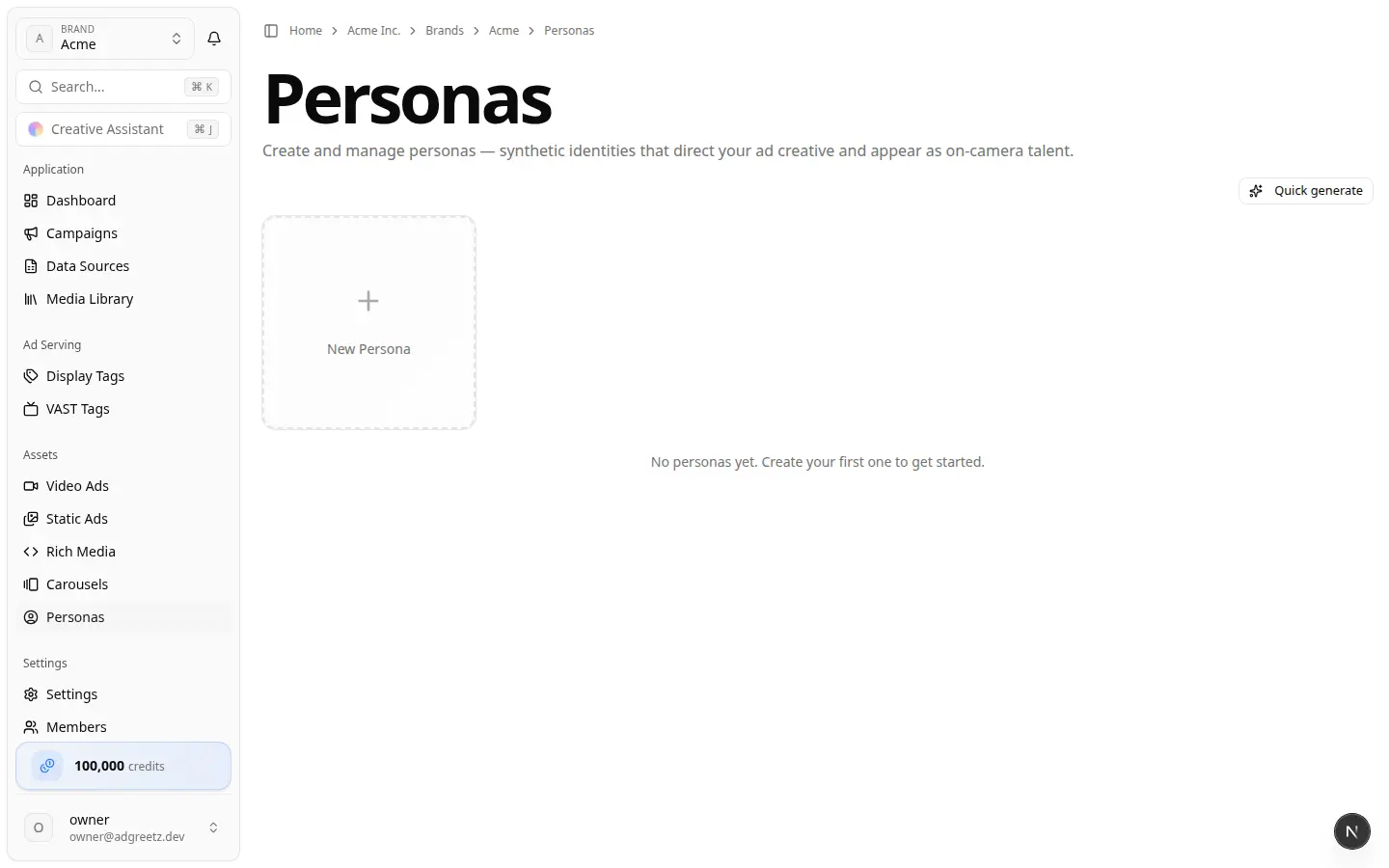
- Open the brand → Personas on the home rail (or sidebar Personas).
- Page framing: synthetic identities that direct creative and appear as on-camera talent.
- Create talent with New Persona, Quick generate, or Generate with AI (name, label, description, status, demographics, occupation).
- On a persona image, choose Create UGC video. The dialog title is Generate UGC Product Ad.
- Provide a required Product Image. Optional Scene Image unlocks shooting style Custom Scene (Use Scene Image).
- Fill the product, template, shooting style, and tone fields, then Generate UGC Ad. A Scene Image selects Custom Scene (Use Scene Image). That style is only on this dialog.
This path does not jump into the video editor, and the result does not appear in brand Video Ads. Watch progress under View UGC videos / the UGC Videos dialog on Personas. If a persona is deleted, orphaned UGC may appear under Orphaned UGC videos.
Personas vs approved characters
| Concept | Role |
|---|---|
| Personas | Brand-owned identities; UGC from a persona reference image |
| Approved likeness | Pre-approved catalog likenesses in the UGC playground. The cast picker on Product Ad calls the same catalog Approved character. |
| Describe a character | Text-only casting with no likeness image |
Launchpad copy still says personas “appear as UGC talent.” The playground’s casting modes are Approved likeness and Describe a character.
Where results appear
| Path | Landing |
|---|---|
| UGC playground | Stays in the studio while it generates. Open the brand video editor from the page or from Recent UGC ads. The ad is also in brand Video Ads and Recent video feeds |
| Personas Create UGC video | Personas UGC Videos dialog (and related UGC rows) — not the brand Video Ads list, and not the team Recent creations video filter |
UGC vs Product Ad vs Video Ad
| Format | Best for |
|---|---|
| UGC Ad | Creator / talking-head product storytelling |
| Product Ad | High-energy product videos (Hypermotion, Catalyst, Metaphor) from photos |
| Video Ad | Broader brand-website spots with agent modes and deploy |
Next
- Create product ads
- Create video ads (editor and Deploy)
- Playground vs launchpad
- Compliance settings