Personalize a Static Ad
Bind a layered static ad's text and images to a data sheet, step through rows, and save the mapping.
Personalizing turns one layered static ad — the template — into one ad per sheet row, in each size. You set it up in the layer editor with Personalize with data. Previews render in your browser for free; only Suggest with AI uses credits on this page.
Availability: personalized creative sets are rolling out to teams gradually. If you do not see Personalize with data in the editor toolbar, your team does not have it yet. Contact support to ask for access.
Before you start
- A layered static ad — one generated with Editable layers. Finished images and carousels cannot be personalized.
- A data sheet in the same brand with status Ready — see Data sheets.
- Layers that should change per row need a template variable. Ads generated as editable layers usually arrive with variables on the headline, offer, product image, and call to action. To add one, select the layer and fill Template variable (for example
headline) in the Layers panel. Names start with a letter and use a–z, 0–9,-and_. Layers that share a name receive the same value.
No design yet? Generate a template from a data sheet and you land in this panel with a draft mapping.
1. Open Personalize with data
- Open the static ad in the layer editor.
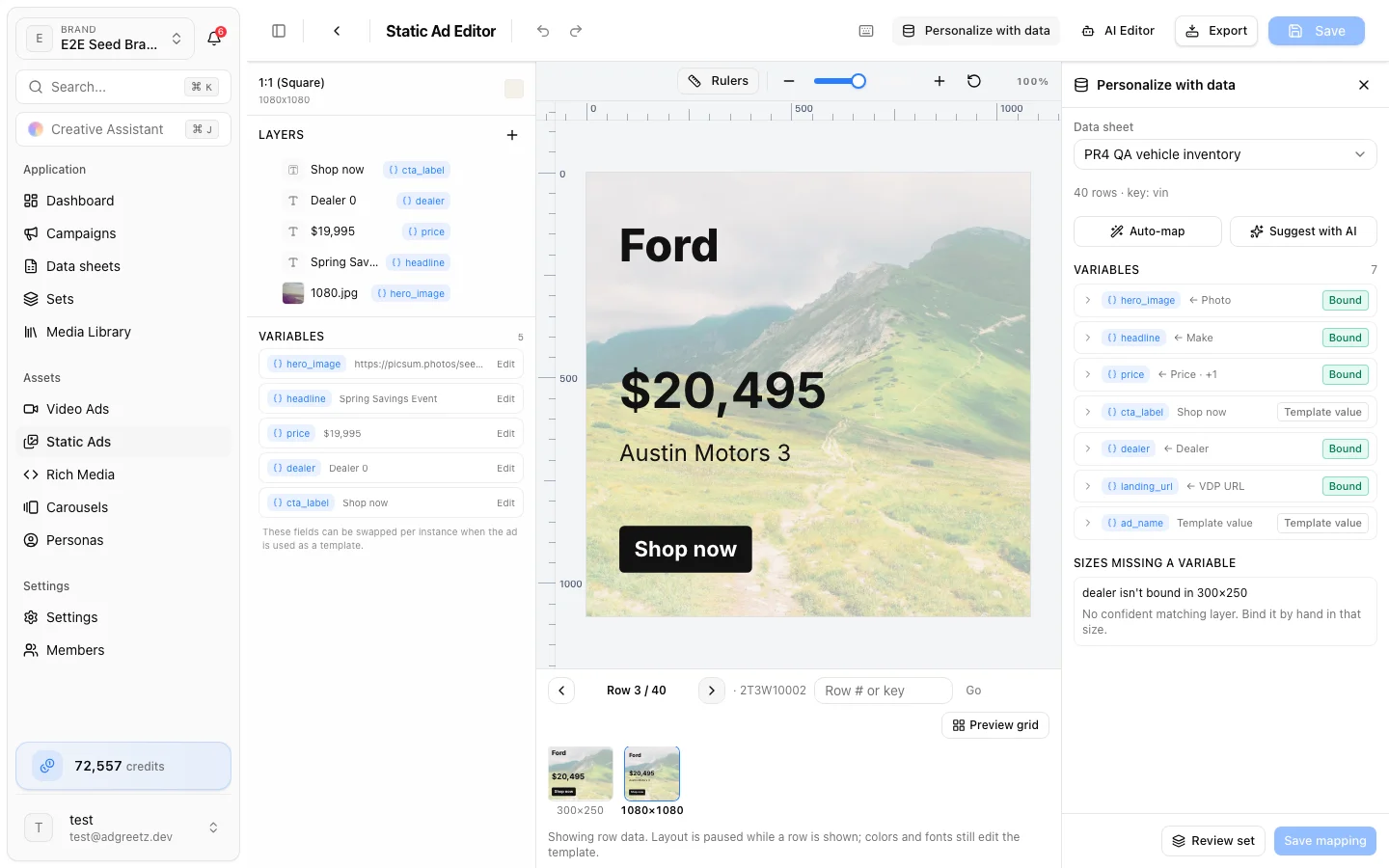
- In the toolbar, choose Personalize with data (the database icon; the label shows on wide screens). The Personalize with data panel opens on the right.
- Under Data sheet, choose a sheet. Sheets still processing, or that failed, are listed but cannot be picked.
The panel shows the row count and key column, such as 312 rows · key: vin, then the template's Variables.
2. Map variables to columns
Start with one of the two helpers:
- Auto-map matches columns to variables by name, including the usual column names of product catalogs, vehicle inventories, and location lists. Free.
- Suggest with AI makes one small AI call for what names cannot settle. Uses credits. Suggestions appear under AI suggestions with a short reason; choose Apply, Apply all, or Dismiss.
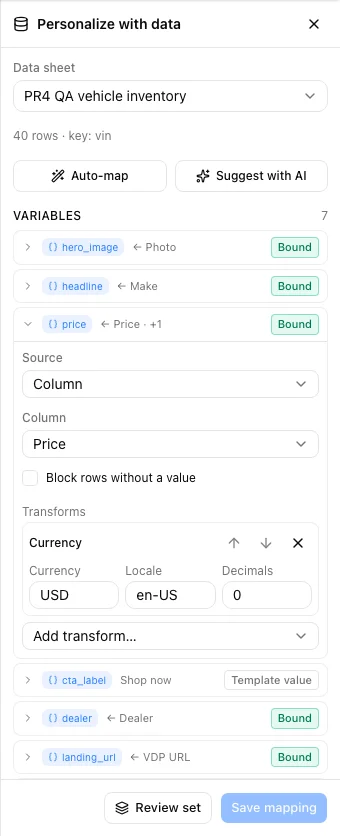
Then select a variable to open its binding and pick a Source:
| Source | What fills the variable |
|---|---|
| Template value | The design's own text or image. Nothing changes per row |
| Column | One column's value. A column whose type may not suit the variable shows (type may not fit) |
| Format | Text built from several columns, such as {year} {make} {model}. Select a column under Insert a column to add it at the cursor. Write }} for a literal brace |
| Fixed text | The same text on every row |
| AI text / AI image | Written or made per row by AI when the set runs — see AI values per row |
Transforms
Column and Format bindings can take transforms, applied top to bottom. Choose Add transform…, then reorder with Move up / Move down or Remove one.
| Transform | What it does |
|---|---|
| Trim spaces | Removes spaces at the start and end |
| UPPERCASE, lowercase, Title Case | Changes the case |
| Currency | Formats an amount with a currency, locale, and decimals. A value in a different currency is blocked rather than shown wrong |
| Number | Formats a number for a locale, with fixed decimals |
| Date | Formats a date as Short, Medium, Long, Full, or ISO, for a locale and time zone |
| Fallback text | Text to use When empty |
| Replace values | One per line: value=replacement, such as AWD=All-wheel drive |
| Shorten | Cuts to Max characters, optionally with Add … |
Required values
Block rows without a value decides what happens when a row's value is empty:
- On — the row is skipped when you make a set, with a reason such as headline is required, but this row has no value.
- Off — the ad keeps the template's own value for that row, and the row shows a warning.
Export fields
landing_url and ad_name show an Export field badge. They are not drawn in the image; each ad carries them into the export's CSV manifest. landing_url also fills a QR code when the design has one, and is the click-through of a rich media bundle. Bind them to columns to give every row its own landing page and name. Links must start with https, mailto, or tel.
Variable statuses
| Status | Meaning |
|---|---|
| Bound | Filled from the sheet |
| Template value | Not bound. Every row keeps the design's value |
| Missing required | The template marks this variable as required and nothing is bound yet |
| Broken | The binding is incomplete, or its column or variable no longer exists. Fix it before you can save |
| Check type | Bound, but the column's type may not suit it — for example, a text column on an image |
| AI value | Made by AI per row when the set runs |
Saved bindings whose variable is gone from the template appear under Bindings that need attention. Remove deletes them on the next save.
3. Step through rows
With a sheet picked, the bar under the canvas becomes a row stepper: Row 1 / 312, Previous row, Next row, and Go to row (a row number or a key value) with Go. Each row is applied to every size at once, in your browser. The saved design does not change.
While a row is shown, layout is paused — you cannot move, resize, or align layers. Colors and fonts still edit the template. Close Personalize with data to change the layout.
The bar can show badges for the current row:
| Badge | Meaning |
|---|---|
| Blocked | This row would be skipped in a set. Hover for the reasons |
| 2 warnings | Something to check, such as text longer than the slot allows |
| Text overflow | The copy does not fit, even at its smallest size, in the listed sizes |
| 1 image after prepare | An image built from a format, fixed text, or a transformed value. It is downloaded when the set is prepared; the preview keeps the template's image |
| AI values are pending | AI values are made when the set runs. The preview keeps the template's value |
The size strip shows the row in every size. A size with an amber ring has text that does not fit.
4. Check many rows in the preview grid
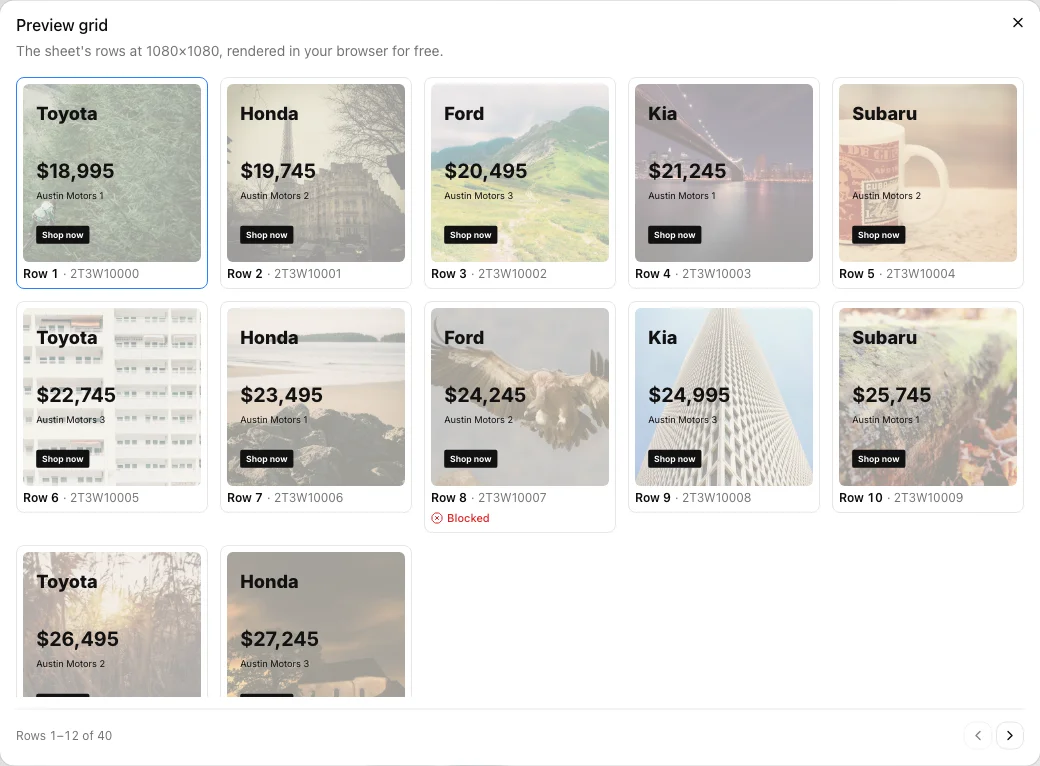
Choose Preview grid to see a page of rows at the current size, rendered in your browser for free. Page through with Previous page and Next page. Blocked rows are marked Blocked. Select a row to show it on the canvas.
5. Fix sizes missing a variable
With several sizes, a variable can be bound in some sizes and not others. Sizes missing a variable lists each gap, such as subhead isn't bound in 320×50, 728×90.
- When a matching layer is found, the gap says which one (300×250: binds the layer showing "Spring sale"). Choose Bind in 2 sizes to bind it there.
- Otherwise it says No confident matching layer. Bind it by hand in that size.
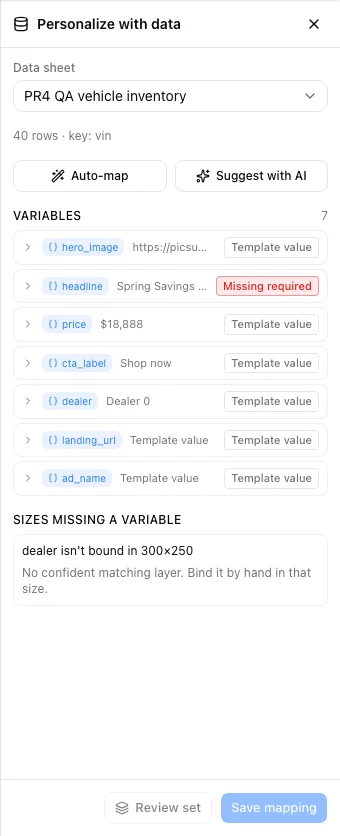
A gap is not always a problem. A small size often leaves a layer out on purpose — a 320×50 banner may have no subhead or legal line. If that size should not show the value, leave the gap: the size keeps its own design for that part.
If the size should show it, bind it by hand: close Personalize with data, switch to that size, select the layer that should change, and give it the same Template variable name. Save the design, then reopen the panel.
If Bind in… changed the size you are looking at, the panel asks you to save the design to keep it.
6. Save the mapping
Choose Save mapping. The footer shows Unsaved while you have changes. A mapping belongs to one template and one sheet; each sheet you use with the template has its own.
- Save the design first: the mapping follows the saved layers. — save the design in the editor, then save the mapping.
- This mapping changed elsewhere — someone else saved it. Choose Reload; your edits are re-applied on top.
- Switching sheets with unsaved changes asks you to Discard changes or Keep editing.
7. Review a set
Review set sits next to Save mapping. It stays disabled until a set can be made from what is stored — hover it to see why:
- Save the design first: a set is made from the saved design.
- Save the mapping first: a set is made from the saved mapping.
- Save a mapping for this sheet first.
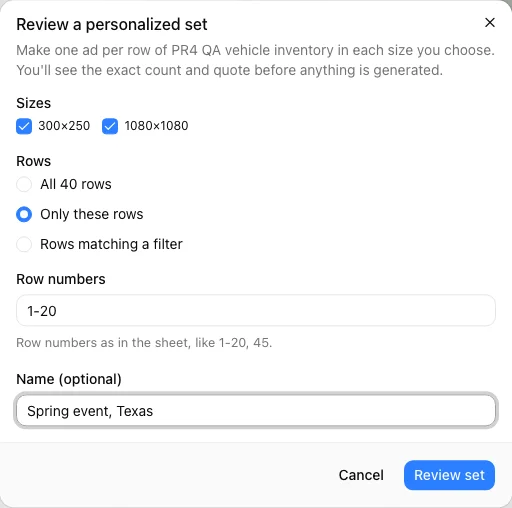
When it is enabled, choose Review set. The Review a personalized set dialog asks:
| Field | What to choose |
|---|---|
| Sizes | Which of the template's sizes to make |
| Rows | All 312 rows, Only these rows (row numbers such as 1-20, 45), or Rows matching a filter (column, condition, value) |
| Leave out rows (optional) | Rows to skip, such as 3, 7-9 |
| Name (optional) | A name for the set, such as Spring event, Texas |
A set can have at most 5,000 rows. Choose Review set to open the set's review page. Nothing is generated or charged yet.