Manage Brand Members
Give existing team members access to a brand, change their brand role, or remove them.
Brand access is not the same as team access. Adding someone to a brand does not invite them to the product or to the team.
Important: A brand member must already be a member of the team. Add them under team Members first, then come back here.
1. Confirm they are on the team
- Return to the team workspace (Back to workspace).
- Open Members.
- If the person is missing, invite them to the team and wait until they appear.
- Open the brand again.
2. Open brand Members
- Open the brand.
- Select Members in the sidebar, or Members on the brand home rail.
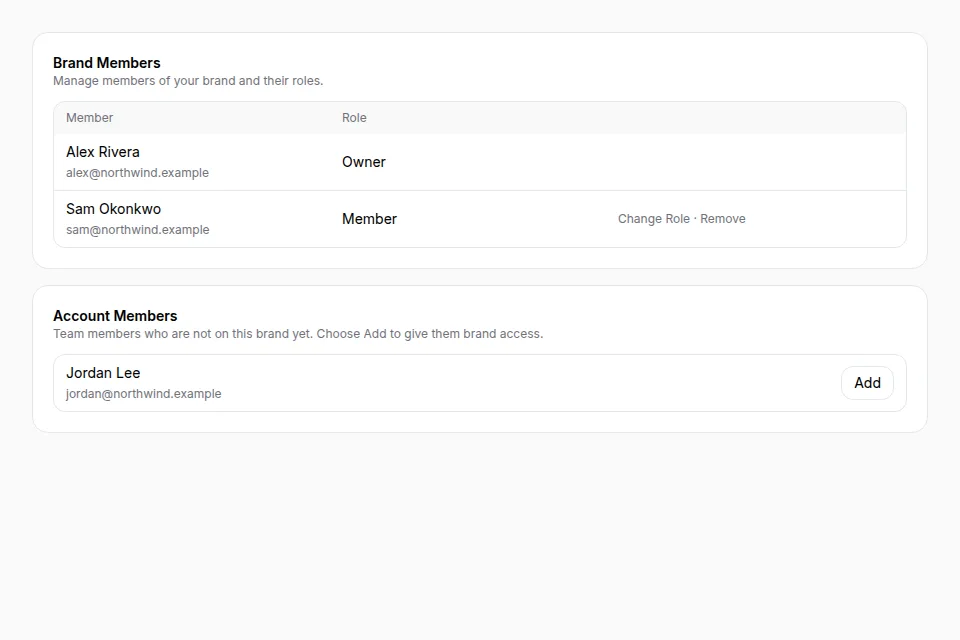
You will see two cards:
- Brand Members — people who already have access to this brand
- Account Members — team members who are not on this brand yet
3. Add a brand member
- Find the person in Account Members. You can search by name, email, or team role.
- Choose Add.
- They join the brand with the role Member. No email is sent from this page.
There is no “invite by email” flow on brand Members. If the person is not in Account Members, they are not on the team yet.
4. Change a role or remove access
On Brand Members:
- Search by name, email, or role if the list is long.
- Open the person's menu.
- Choose Change Role or Remove. Change Role opens Change Member Role: pick Owner, Admin, or Member, then Save.
Rules you will notice in the UI:
- You cannot change your own brand role.
- You cannot remove yourself.
- Owners can manage admins and members. Admins can manage members.
- New people are added as Member. Do not treat the visible Owner option as a supported ownership-transfer flow. A brand has one owner; choosing Owner while one exists is refused with This brand already has an owner. Change the current owner's role first.
Removing someone from the brand does not remove them from the team.