Sets in Campaigns and Assistants
Start a personalized set from a campaign, follow it on the campaign board, and let an assistant draft one for you to review.
A creative set can belong to a campaign, so its ads sit next to the rest of the campaign's creative. Assistants can also propose one: they draft it, and you review and approve.
Availability: personalized creative sets are rolling out to teams gradually. If you do not see Personalized set on a campaign's Creatives, your team does not have it yet. Contact support to ask for access.
Start a set from a campaign
- Open the campaign and go to Creatives.
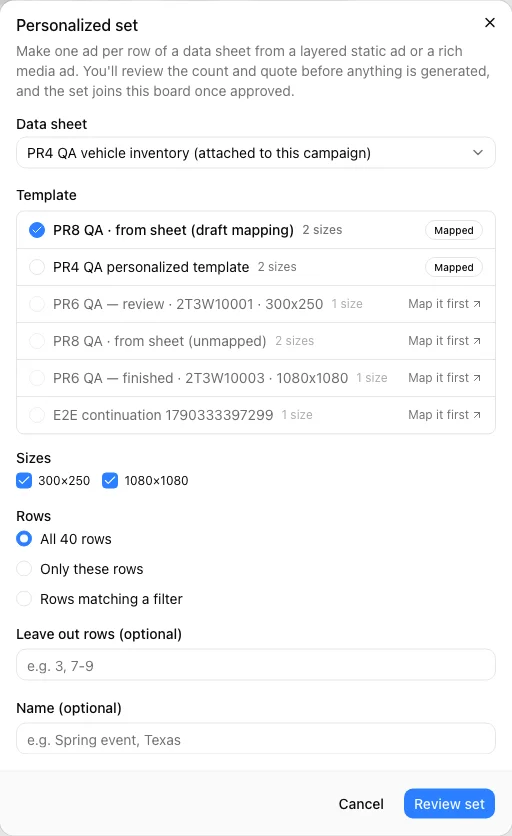
- Choose Personalized set.
- Under Data sheet, pick a ready sheet. The sheet attached to the campaign is marked (attached to this campaign) and is selected for you.
- Under Template, pick a layered static ad or a rich media ad (marked HTML5 · responsive). Each shows its size count.
- Mapped — a mapping is saved for this sheet. You can pick it.
- Map it first — no mapping yet. The link opens the template's editor, where you map it in Personalize with data — see Personalize a static ad or Personalized rich media sets.
- Choose the Sizes and Rows, an optional Name, and choose Review set.
The set's review page opens. Nothing is generated until you approve — see Review and approve a set.
If the brand has no layered static ads or rich media ads, the dialog says so. Create one first, then personalize it.
To attach a sheet to the campaign, open the campaign's Personalization section, choose Attach next to Data sheet, and pick a sheet.
Follow the set on the campaign board
When you approve a set that belongs to a campaign, a Personalized set card joins the campaign's creatives. It shows a thumbnail, the set's status, progress such as 96 / 120 ready, how many ads need review, and Open set. It updates while the set runs.
Each set has one card. When you re-run the set, the new set takes over the same card.
The campaign's overall status takes the set into account:
| The set is… | The campaign shows |
|---|---|
| Queued, generating, or paused | Generating… |
| Finished with at least one ad ready or needing review | Ready, if the rest of the campaign is ready too. The card shows how many ads need review |
| Finished with no usable ads | Needs attention |
A set that is not approved yet does not appear on the board.
Let an assistant draft a set
Assistants can propose a personalized set when a data sheet fits — one ad per product, vehicle, or location. A proposal is always an unpaid draft: nothing is generated or charged until you prepare its quote and approve it on the review page.
Creative Assistant
When you chat with the Creative Assistant inside a brand, ask for it directly — for example, "Make an ad for every SUV in the inventory sheet using the Spring layered ad."
- The assistant reads the brand's sheets and proposes a layered static ad, a sheet, an optional row filter, and how variables fill from columns.
- An approval card titled Draft a personalized set appears. It says the draft is unpaid and nothing is generated or charged until you review its quote and approve it. Choose Approve to create the draft, Edit to revise the request, or Cancel.
- The assistant replies with a link to the set's review page. Open it, choose Prepare quote, check skipped rows and the quote, and approve if it looks right.
Campaign AI interview
During a campaign's AI interview, the interviewer may offer a personalized set when a sheet suits the campaign. There is no approval card here: after it has read a sheet, it asks you in the chat to confirm before it drafts anything. When it drafts one, the message shows Drafted a personalized set. The draft set belongs to the campaign; the interviewer shares its review link.
What the assistant can and cannot do
- It can only use the brand's own layered static ads and data sheets. An assistant cannot draft a rich media set: start one from the campaign's Personalized set, or with Personalize with data on the rich media ad.
- If you already saved a mapping for that template and sheet, your mapping is kept. Otherwise the assistant's proposal, checked against the real template and sheet and topped up by auto-mapping, is saved as a draft mapping.
- Asking twice for the same set does not create duplicates.
- It never approves or launches a set. You always do that on the review page.