Create Static Ads
Generate still ads in multiple aspect ratios from the brand home or Static Ad Playground.
Static ads are still images sized for social, IAB display, and TV placements. They are the fastest full-ad format to validate a brand website and guidelines — Create your first ad uses this path.
Before you start
- Correct team and enough credits
- Brand Website present and guidelines reviewed when possible
- Optional: product images as references
- Decide Finished images (complete rasters) vs Editable layers (layer-based)
Path A — Brand home
- Open the brand. Under Or start from a format, choose Static. Sidebar Static Ads → Generate Static Ads opens the same page.
- The brand's Static Ad Generation Studio opens at
/home/brands/{brandId}/static-ads/create— the same studio as the playground, with the brand already filled in. Back to static ads sits above it. It also has the Data chip for generating a template from a data sheet when your team has personalized sets; the playground does not. - Fill Creative direction (objective, style, language, creative concept, references), then Output settings (sizes, variations, Finished images vs Editable layers, models).
- Choose Generate static ads.
- The generation page opens at
/home/brands/{brandId}/static-ads/{generationId}.
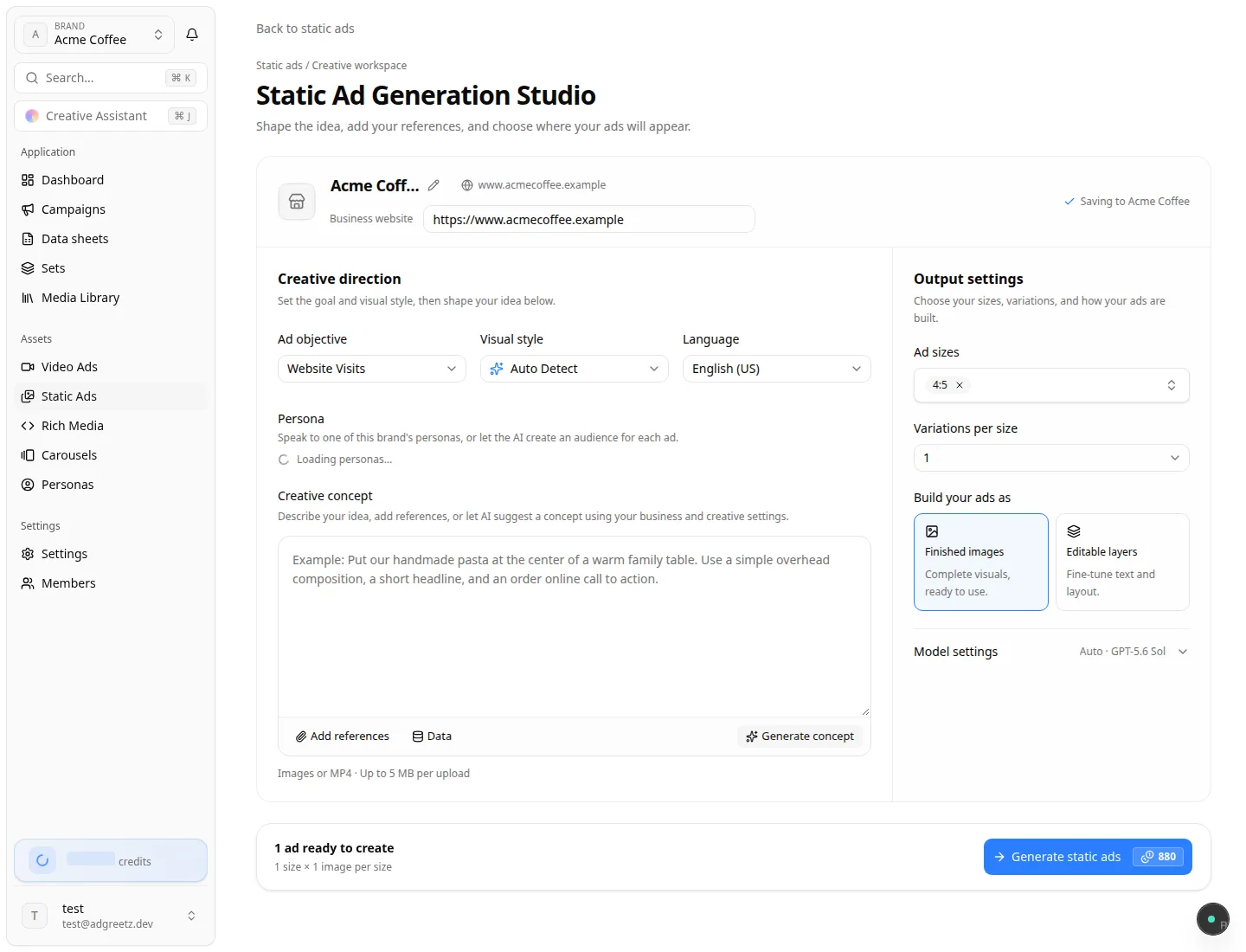
The brand is locked in this studio: there is no business search, Brand options, or new-brand mode. Reuse on an existing generation opens the same studio prefilled with that brief. If you leave the studio before generating, your text and settings are still there when you come back in the same browser tab. Files you attached must be added again. Start over appears once you have changed something and returns the studio to its starting brief.
Path B — Team Static Ad Playground
- On the team home, choose Static Ad.
- On Static Ad Playground, use Which business is this ad for? — the same search as Create video ads: Your brands, a Google place, or Add "{name}" as a new business.
- Optional shortcut: Adapt an existing ad opens the Adapt Ad tool instead — Adapt Ad.
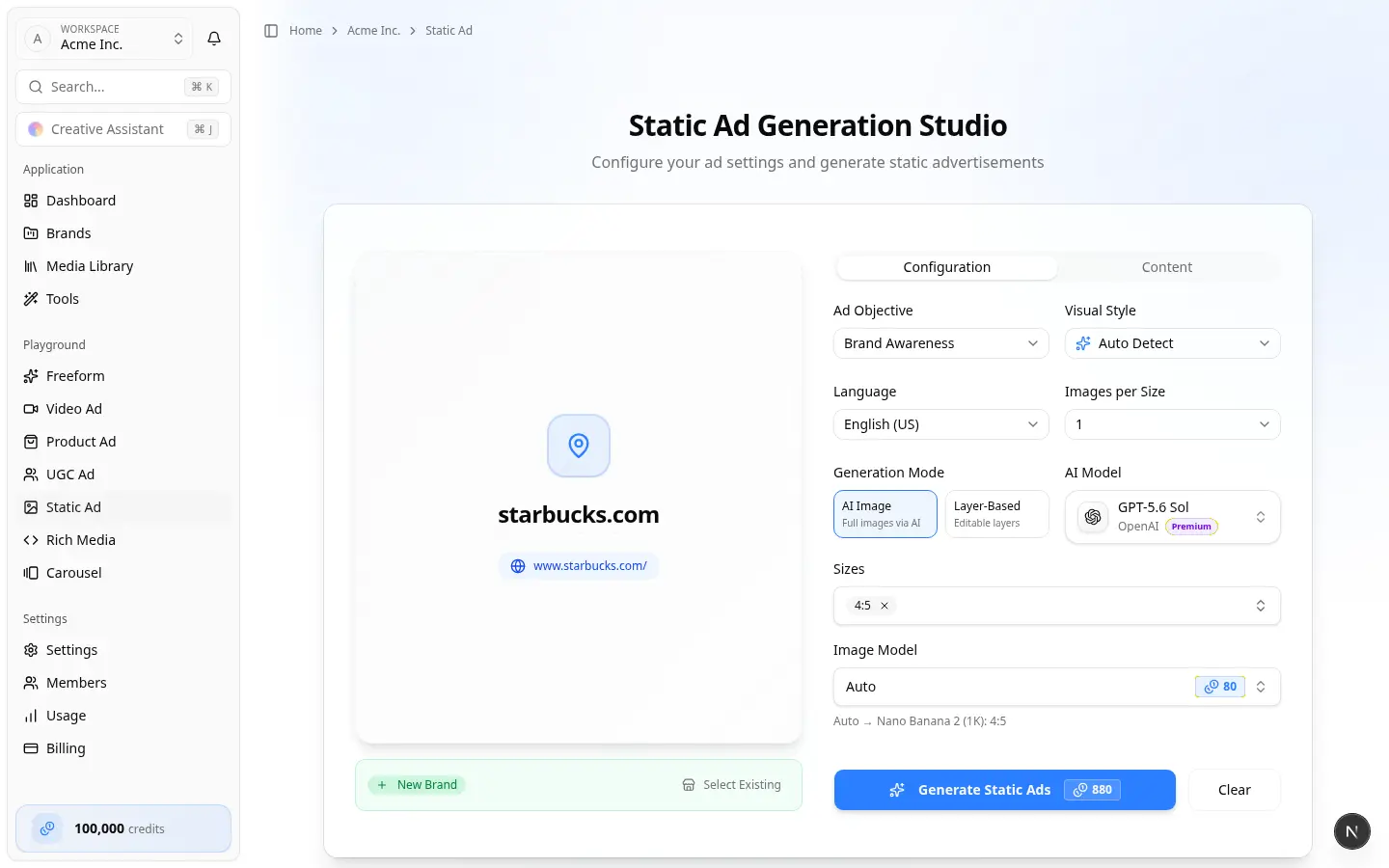
- After a place is selected, the Static Ad Generation Studio opens (Shape the idea, add your references, and choose where your ads will appear.). There are no Configuration / Content tabs — one studio page holds everything.
- In the brand header, confirm the business name. Open Brand options to Choose an existing brand or Create a new brand. Choose Start over to pick a different business.
- Fill Creative direction, then Output settings, then Generate static ads.
Studio layout
| Area | What you set |
|---|---|
| Business and brand | Name, website (when missing), and where to save the ads |
| Creative direction | Ad objective, visual style, language, then the creative concept |
| Output settings | Ad sizes, variations per size, Finished images vs Editable layers, and model settings |
| Footer | Bar under the card: credit / output summary and Generate static ads |
Creative direction
| Field | Required? | Notes |
|---|---|---|
| Ad objective | Yes | Default often Brand Awareness |
| Visual style | Yes | Default Auto Detect |
| Language | Yes | Default English (US). RTL languages restrict which image models can draw text |
| Persona | No | On the brand studio, speak to one of this brand's personas, or leave it so the AI creates an audience for each ad |
Creative concept
- Type an optional brief in Creative concept — campaign offer, legal lines, tone notes
- Generate concept — AI draft using the business and creative settings (uses credits)
- Add references — upload images or MP4, paste an image URL, or browse the Media Library when an existing brand is selected. Instagram import appears when Meta is connected on that brand.
Output settings
| Field | Required? | Notes |
|---|---|---|
| Ad sizes | Yes | Aspect ratios, IAB sizes, and TV presets |
| Variations per size | Yes | Typically 1–3 (playground default 1) |
| Build your ads as | Yes | Finished images (Complete visuals, ready to use.) or Editable layers (Fine-tune text and layout.) |
| Model settings | Yes | Collapsed summary is often Auto · GPT-5.6 Sol. Expand to change Image model and Writing model. Image model routing notes appear when a size needs another model |
After generation
- Wait for status complete on the generation page, brand Static Ads list, or Recent activity.
- Review assets by size. Check logo, colors, offer, and text size for mobile placements.
- Open the layer editor when the run used Editable layers.
- Adapt finished ads into more sizes via Adapt Ad when you need placements you did not generate.
- Share or publish to Facebook / Instagram when those accounts are connected on the brand.
If a generation failed, use in-product regenerate on that same row when offered, rather than creating a duplicate card.
Leaving the playground resets the form when you return — each visit is a new transaction.
Personalize with a data sheet
A layered static ad can become a template: one ad per row of a data sheet, in every size. In the layer editor, choose Personalize with data, bind the ad's variables to the sheet's columns, step through rows, and choose Review set. You see the exact quote before anything is generated.
- Walkthrough: Personalize a static ad
- No design yet: attach a sheet with the Data chip in the brand's studio — Generate a template from a data sheet
Personalized creative sets are rolling out to teams gradually. If you do not see Personalize with data, contact support to ask for access.
Where finished static ads appear
- Brand Static Ads
- Brand home Recent activity → Static Ads
- Team Recent creations → Static Ads
- Brand / team Media Library entries tagged as static ads (when saved as media)
- Brand Sets, for ads made from a data sheet — Work with a creative set
Static ads vs Image Studio
| Need | Use |
|---|---|
| Placement-ready ad with objective, sizes, and brand copy | This guide |
| One still to edit, reframe, erase, or upscale | Image Studio |
| Resize an existing finished static ad | Adapt Ad |