Work in a Brand
Open the right brand, start from a format, and find campaigns, media, and generated ads.
Once a brand exists, most daily work starts on its home page. Confirm you are in the correct brand before you generate, upload, or connect an account.
1. Open the brand
From the team:
- Select Brands.
- Search or filter by type if the list is long (All, Single location, Multi-location, Online).
- Select the brand card (grid) or View (table).
From another brand:
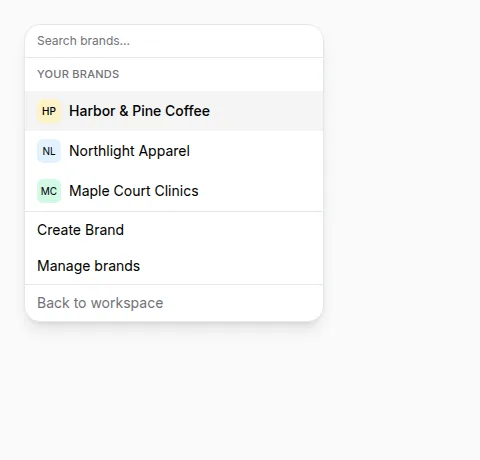
- Open the brand selector in the sidebar.
- Search Your Brands and select the brand.
- Or choose Manage brands to return to the team list.
- Back to workspace returns to the team.
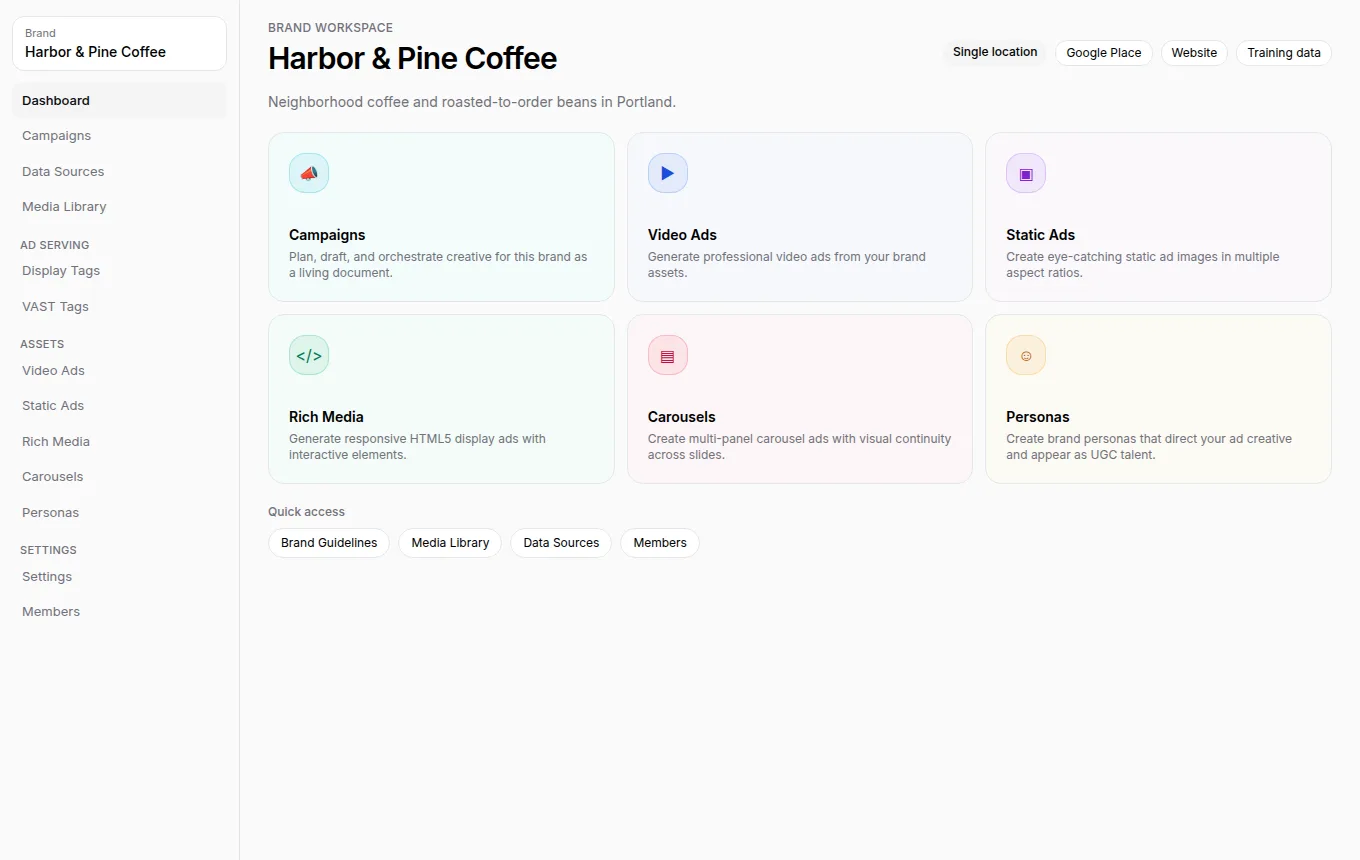
2. Read the brand home header
You should see:
- The brand's picture (or its initial) and name
- A type badge (Online, Single location, or Multi-location)
- The website's address, when a usable URL is stored — it opens the site in a new tab
- The address, or Google Place, if the brand was created from a Places listing
- The description, when one is stored. Long descriptions show Show full description / Show less
- Brand settings and New campaign on the right
If the name is wrong, stop and switch brands.
3. Describe an ad, or open a studio
The box at the top is Describe the ad you want. Write a brief, set Format, Sizes, and Goal, then Generate. Attach from media library adds references. Attach a feed plans one ad per spreadsheet row. Advanced options opens that format's studio with this brief already filled in.
Under the box, the heading is Or start from a format. The line beside it reads Skip the brief and open a format’s studio, with every setting. Each card is one link. The brand is already selected in the studio.
| Card | What it opens |
|---|---|
| Campaign | The brand's Campaigns, to plan a multi-format push as one living brief |
| Static | The brand's Static Ad Generation Studio |
| Rich media | The brand's Rich Media Generation Studio |
| Video | What kind of video? — Standard, UGC, Hypermotion, Catalyst, and Metaphor |
| Carousel | The brand's Carousel Ad Generation Studio |
Team playgrounds are different — they ask you to pick or create a brand during the flow. Personas is not a format card; open it from the rail or the sidebar. For a single image or clip, use team Tools instead.
Format walkthroughs: Video ads, Product ads, Static ads, UGC and personas, Rich media ads, Carousel ads. Starting-point chooser: Playground vs launchpad.
4. Use the brand kit, workspace links, and sidebar
The column on the right holds:
- Brand kit — colors, heading and body fonts, and voice, with Edit guidelines. Until guidelines exist it says No brand kit yet; choose Set up guidelines.
- Personas — Talent and audiences that steer your creative.
- Links — Media library, Data sheets, Training data, and Members.
On a phone, these collapse into one list that starts with Brand kit & guidelines and Personas.
The sidebar includes Dashboard (this home page), Campaigns, Data sheets, Media Library, Settings, Members, and the asset libraries (Video Ads, Static Ads, Rich Media, Carousels, Personas). Some teams also see Knowledge. If you do not see it, use Brand Guidelines.
Teams with personalized creative sets also see Sets under Data sheets. See Campaigns & personalization.
5. Reopen recent work
Recent activity / Latest from this brand is a single feed of videos, static ads, carousels, and rich media.
- Filter with All, Videos, Static Ads, Carousels, or Rich Media
- Switch grid or table
- Use Load more when the list is long
When the brand has nothing yet, the feed says Nothing here yet — Describe an ad above or pick a format — what you make will show up here.
Before you generate
- Website is present and correct
- Guidelines have been reviewed
- You have the source images you need
- The team has credits — see Generation basics